





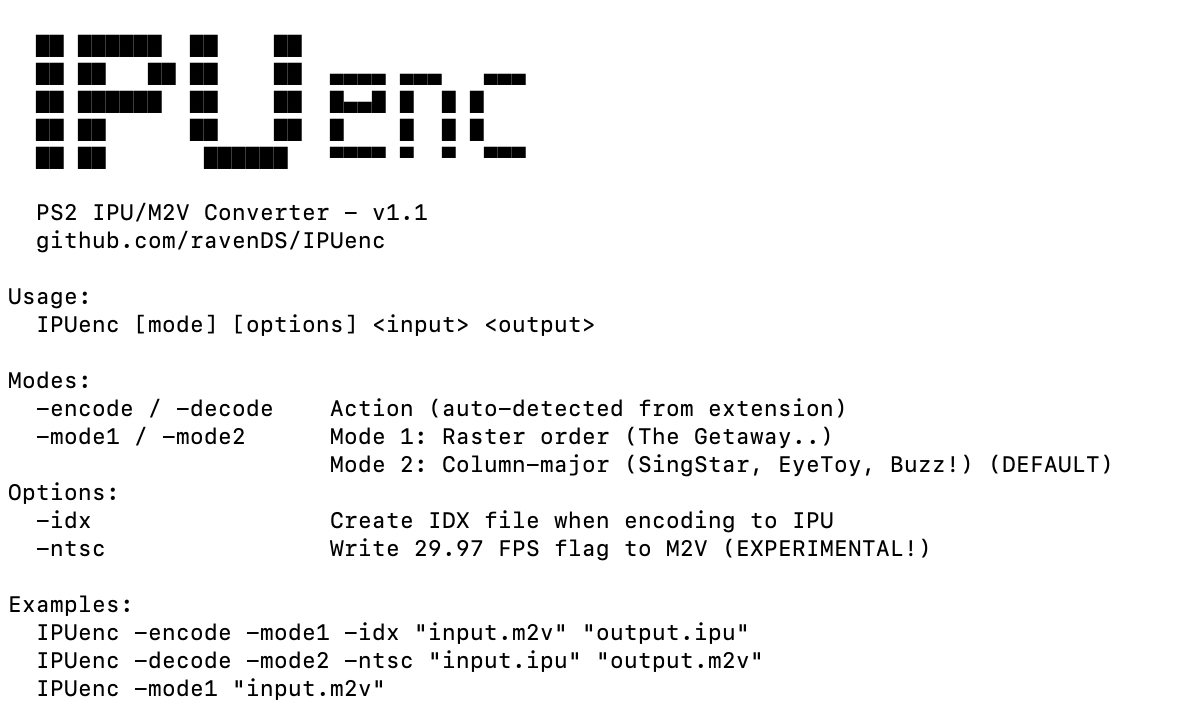
IPUenc is an open-source video converter for PlayStation 2 .IPU video files.
The main input/output format is .M2V (MPEG-2 video).
.M1V (MPEG-1 video) is also supported.
Source code is included in the zip.
Requirements
Supported platforms: Windows, macOS, and Linux.
Supported conversions
- IPU → M2V/M1V
- M2V/M1V → IPU
IPU modes
Mode 1: Raster order (row-major)
In this mode, the macroblocks that compose a frame are stored in row-major order.
Used by games such as The Getaway, etc...
Mode 2: Column-major order
In this mode, the macroblocks that compose a frame are stored in column-major order.
Used by games such as SingStar, EyeToy, Buzz! Quiz, etc...
Other options
- -idx: Writes a SingStar .IDX file alongside the converted .IPU file.
- -ntsc: Writes a 29.97 FPS tag in the .M2V header. Experimental.
GitHub Repo

GitHub
GitHub - ravenDS/IPUenc: PlayStation 2 IPU Video Encoder/...
PlayStation 2 IPU Video Encoder/Decoder. Contribute to ravenDS/IPUenc development by creating an account on GitHub.
Edited by ravenDS
update game list
Game Name
SingStar, EyeToy, Buzz!, The Getaway, etc..
Create an account or sign in to leave a review
There are no reviews to display.