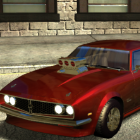
May 8, 20251 yr Hi there, I'd like some advice on how I'd go about doing this, as I've always wanted to port these into other games so I could get a better idea of the scale of them on the ground. Any help will be appreciated! (Oh and here's what I was able to grab from the extracted files if that helps) extractedfiles.zip
May 10, 20251 yr Supporter .psc its just text file. .dat container with files insede (txt,psc,dds,abc) .xex idk from offset ~8191 it is too dense, possibly compressed or encrypted EDIT: first link in google ("XEX is the executable file format used by the Xbox 360 operating system. It seems to be a crypto and packing container for PPC PE executable files.") i make script for unpack your *.dat file: unpack.py Edited May 10, 20251 yr by Durik256
May 11, 20251 yr Author On 5/10/2025 at 11:44 AM, Durik256 said: .psc its just text file. .dat container with files insede (txt,psc,dds,abc) .xex idk from offset ~8191 it is too dense, possibly compressed or encrypted EDIT: first link in google ("XEX is the executable file format used by the Xbox 360 operating system. It seems to be a crypto and packing container for PPC PE executable files.") i make script for unpack your *.dat file: unpack.py 1.25 kB · 2 downloads Why thank you for making that .py file for the dat! You are my hero! I'll check and make sure if I missed a file that might have the models.
May 11, 20251 yr Author Upon further looking, I sadly cannot find anything. Damm it all. Oh well, least those files have been unpacked, I'm finding some interesting things in them anyways.





Create an account or sign in to comment