





Hello, guys!
It's me again! I haven't posted anything for a while, so I decided to make a new program for my tool I created for the game.
It's a NET windows forms application program, that was tested multiple times.
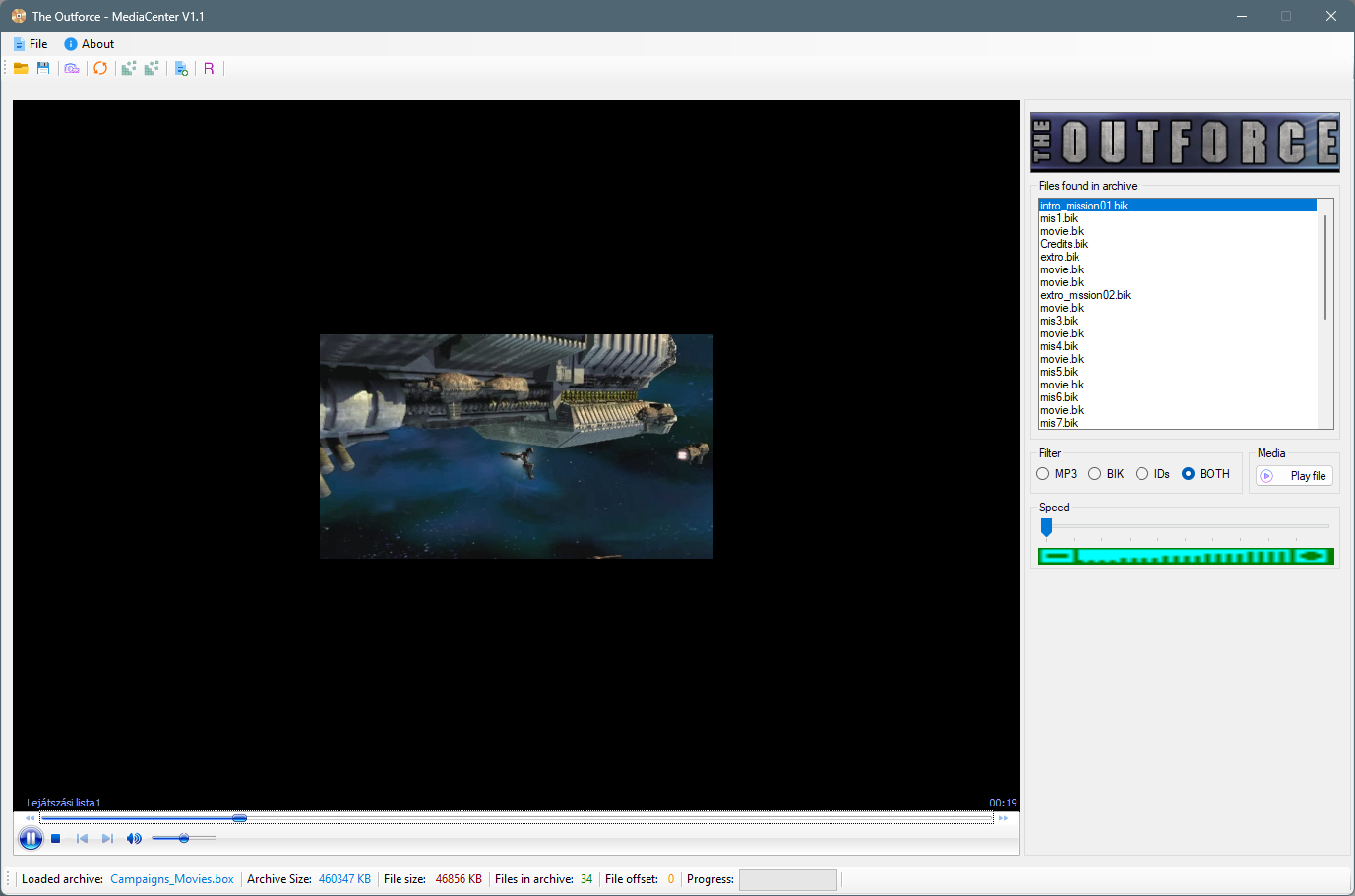
This is version 1.1 with some fixes and basic features. (see the attached images). This program is part of a bigger project, the "DevTools" that I designed for the game. You can also download that tool (version 2.7). I'm working on version 2.8. This tool will be updated with the v2.8 of DevTools...
With this tool you can open any *.box archives, watch *.bik files or listen to *.mp3 files stored in the box archives. You do not need to extract anything, also do not need to create temporary folders.
For more info, please read the attached Changelog.txt file...
This tool will be updated multiple times!
What's New in Version 1.1
Released
Fixes:
*Fixed some bugs that caused lags
Added:
*Added single file and archive extraction.
*Hungarian documentation.
Knowing issues:
*Some .mp3 files can not be played correctly
*The archive update function (add single file / replace) is not implemented, will be added in the upcoming update.
Game Name
-
 1
1
Create an account or sign in to leave a review
There are no reviews to display.