Skip to content
View in the app

A better way to browse. Learn more.

ResHax

A full-screen app on your home screen with push notifications, badges and more.

To install this app on iOS and iPadOS
  1. Tap the Share icon in Safari
  2. Scroll the menu and tap Add to Home Screen.
  3. Tap Add in the top-right corner.
To install this app on Android
  1. Tap the 3-dot menu (⋮) in the top-right corner of the browser.
  2. Tap Add to Home screen or Install app.
  3. Confirm by tapping Install.
Help us keep the site running.

TextureFinder 2.1

(5 reviews)

1 Screenshot

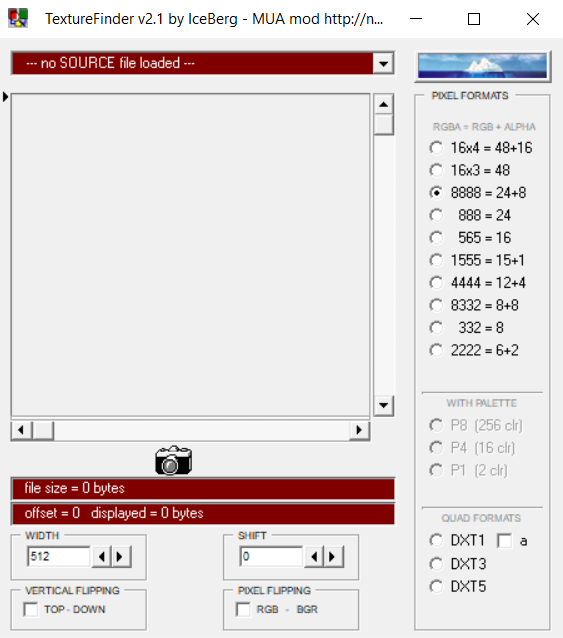
Texture Finder is a tool made by IceBerg to find texture files.
You use the tool by loading in an unknown image file format and then use the pixel formats, with pallete, quad formats along with offsets in the program to finalize the image and converting it into .bmp when exporting. Sadly no further documentation is included with the program thus far.

What's New in Version 2.1

Released

No changelog available for this version.


Game Name

All Games

User Feedback

Create an account or sign in to leave a review

   2 of 2 members found this review helpful 2 / 2 members

bundled with malware 😞

   3 of 3 members found this review helpful 3 / 3 members

Like SkylaLZ mentioned, while I would love to try this out, this is apparently bundled with Malware. I even got a warning from Windows in bright red that I should not execute the file. Thankfully the older version 1.3.2 doesn't appear to be based on VirusTotal: https://www.virustotal.com/gui/file/f64cca94225b5ef8b66785df1a3c161dd855d35edae30e0c8c15d7273ddae064

Until this gets addressed, stay away from this version.


Excellent tool. Was able to extract texture data from Battlezone 2's weird proprietary format of dxtbz2.

   3 of 3 members found this review helpful 3 / 3 members

There is also an older version of TextureFinder.v132
This one is older but can open indexed images with palettes.
The newer one TextureFinder 0.2.1 is rewritten from scratch, but it can't open indexed images with palettes.

Account

Navigation

Search

Search

Configure browser push notifications

Chrome (Android)
  1. Tap the lock icon next to the address bar.
  2. Tap Permissions → Notifications.
  3. Adjust your preference.
Chrome (Desktop)
  1. Click the padlock icon in the address bar.
  2. Select Site settings.
  3. Find Notifications and adjust your preference.