





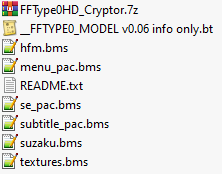
For unpacking the pack[0-9].pac by using the suzaku file index.
Start with using suzaku.bms on the WIN\JP\suzaku.fnd file.
Export to a directory NOT within the WIN\JP folder.
This will unpack and unzip everything including the English language audio and texture files (previously unfound).
Texture .dds files can be opened with Noesis. Chr model bin files can be opened in the UniViewer_U2 or FFT0Anim_U1.
Audio .scd files can be played in FooBar2000 with the vgmstream plugin (not included).
The file packing system is a little messy so multiples of the same files can sometimes be found.
Because of this, allow QuickBMS to rename files when unpacking and not overwrite them.
Also inculded are 5 other scripts for unpacking other types of files.
- textures.bms
For JP\system\sugimoto\ textures.bin / weathertex.bin files.
- se_pac.bms
For JP\sound\sepack files.
- hfm.bms
For files with the hfm\x00 magics. Can sometimes leave data behind but should get most of the files packed.
- subtitle_pac.bms
For JP\movie\subtitle files.
- menu_pac.bms
For JP\menu\main\dat files, JP\__\savedata\for_show\GAMEDATA00\ TYPE0DAT.BIN / TYPE0SYS.BIN files. Might be useful on others but didn't check everything.
Also included is a 010 template of the game models by Echelo. And a decryptor by AyuanX for some files.
Edited by Hearhellacopters
Create an account or sign in to leave a review