Tools
Any complete tools can go here
1,795 files
-
This is attachment from ZenHAX posted by spiritovod in topic:
Unreal Engine 4 pak-file Unpacker / unreal_tournament_4.bms [UE4 global topic]- 4 Downloads
Submitted -
This is attachment from ZenHAX posted by spiritovod in topic:
Unreal Engine 4 pak-file Unpacker / unreal_tournament_4.bms [UE4 global topic]- 12 Downloads
Submitted -
This is attachment from ZenHAX posted by spiritovod in topic:
Unreal Engine 4 pak-file Unpacker / unreal_tournament_4.bms [UE4 global topic]- 35 Downloads
Submitted -
This is attachment from ZenHAX posted by spiritovod in topic:
Unreal Engine 4 pak-file Unpacker / unreal_tournament_4.bms [UE4 global topic]- 70 Downloads
Submitted -
This is attachment from ZenHAX posted by Puterboy1 in topic:
Unreal Engine 4 pak-file Unpacker / unreal_tournament_4.bms [UE4 global topic]- 1 Downloads
Submitted -
This is attachment from ZenHAX posted by spiritovod in topic:
Unreal Engine 4 pak-file Unpacker / unreal_tournament_4.bms [UE4 global topic]- 78 Downloads
Submitted -
This is attachment from ZenHAX posted by infogram in topic:
Unreal Engine 4 pak-file Unpacker / unreal_tournament_4.bms [UE4 global topic]- 13 Downloads
Submitted -
This is attachment from ZenHAX posted by Mysticus in topic:
Unreal Engine 4 pak-file Unpacker / unreal_tournament_4.bms [UE4 global topic]- 0 Downloads
Submitted -
This is attachment from ZenHAX posted by infogram in topic:
Unreal Engine 4 pak-file Unpacker / unreal_tournament_4.bms [UE4 global topic]- 0 Downloads
Submitted -
This is attachment from ZenHAX posted by Fatire23 in topic:
Unreal Engine 4 pak-file Unpacker / unreal_tournament_4.bms [UE4 global topic]- 6 Downloads
Submitted -
This is attachment from ZenHAX posted by infogram in topic:
Unreal Engine 4 pak-file Unpacker / unreal_tournament_4.bms [UE4 global topic]- 0 Downloads
Submitted -
This is attachment from ZenHAX posted by aluigi in topic:
Hiding the invitation command-line in Steam- 0 Downloads
Submitted -
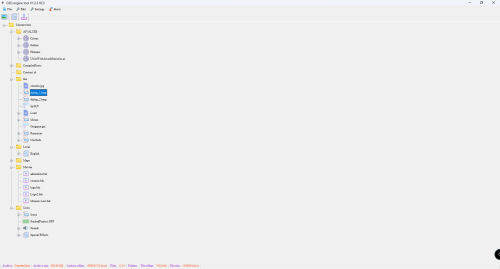
This program was designed for the asset container archives (*.box and *.opf).
With this tool you can directly access the contents of these archives, extract them,
build them.
You can open images, scriptfiles via my tool stored in the archive with out any
extraction. In addition, you can export the script files too and use them in your
- for example- new maps.
Regarding script files you can read, edit and save them at specific destination.
- 14 Downloads
Updated -
Final Fantasy VII Rebirth tool
Exports static and skeletal characters, maps (including nanites).
In addition to all DLLs provided here, it requires global.ucas file from the game, it must be in the same folder as .EXE.
Usage is similar to previous FF7remake tool. See below.
Main difference is that nanite maps (using nanites) are exported in DMF format (download blender plugin for it here).
Tool usage:
You can use the tool to convert individual assets, or all assets in a folder.
1. To convert one asset, drop asset file onto the tool, or run the tool from command line with asset filename as parameter.
If asset file contains a texture, it will create "texture.db" file with information for later use in map extraction.
If asset file contains static or skeletal mesh, in will be exported to ASCII. Raw data will also be saved in "staticmesh.raw" & "skeletalmesh.raw" folders for later use in map extraction.
If asset file contains a material, it will export material info in a text file, and create "material.db" file with information for later use in map extraction. If "material.db" file already exists next to the tool, it will be updated with newly found materials.
If asset file contains a blueprint, it will create "blueprint.db" file with information for later use in map extraction. If "blueprint.db" file already exists next to the tool, it will be updated with newly found blueprints.
2. To convert all assets in a folder, place the tool in that folder and run it. Tool will search that folder and all subfolders for .uasset files and try converting them all. When prompted "are you sure?" you can press "enter" to confirm or Ctrl-C to cancel.
3. To convert maps, drop .umap file onto the tool, or run the tool from command line with umap filename as parameter. Current version will extract static meshes, skeletal meshes, blueprint-generated meshes and nanite "terrain streams" from a map.
For map extraction to work, "staticmesh.raw" and "skeletalmesh.raw" folders with previously extracted data must be in the same folder with the tool. If some models will be missing, tool will give messages.
If "blueprint.db" file will be next to the tool, it will try and place all models mentioned in blueprints on the map. There's no proper blueprint support, so some models may be placed incorrectly.
If "texture.db" file will be next to the tool, it will be used to assign proper material names to nanite parts of a map instead of hashes.
- 453 Downloads
Updated -
Custom model import tool v0.4 beta + model export (from .model to .ascii)
Usage: spiderman_2_pc_mi_04.exe <model> <ascii> <materials>
You can use models previously converted form the game: export .model file with ModdingTool, then pass it to spiderman_2_pc_model.exe
This will output a model in .ascii format, and materials.txt. Note that due to new LODs/lookgroups layout, export tool now exports ALL meshes with all LODs. You may want to delete lower LODs before importing back to game.
- 5,420 Downloads
Updated -
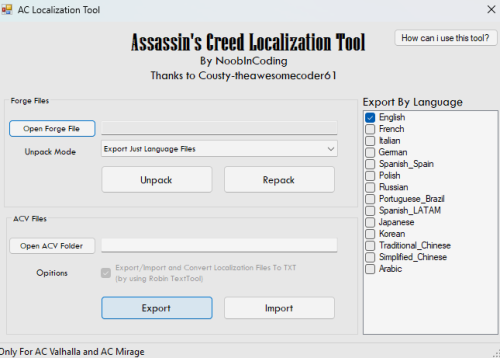
Localization tools for game.
Currently NOT WORKING with AC: Shadows
Made by NoobInCoding, thx
P.S using this as sample for tutorial as well..
- 754 Downloads
Updated -
UE Viewer modded built to open unpacked files from Dragon Raja / Life Makeover.
- 16 Downloads
Submitted -
The "Download this file" button links to the old version (which I can't get rid of). Download the appended zip file instead!
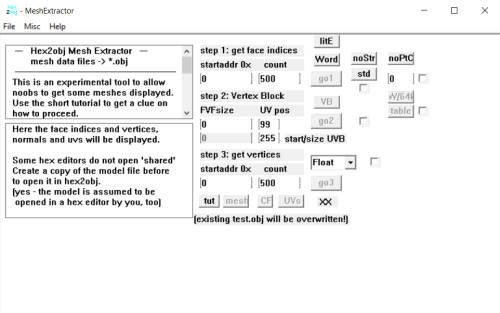
This tool is meant to take the mesh data from the mesh you want to convert into OBJ (you have to load the model file into the program). You will also have to use a hex editor to find the model's mesh data offsets and counts and then copy them into hex2obj. Depending on these parameters it will convert the hex data into an OBJ file (File/SaveAs mesh) that you can then import into your preferred 3D Program (3DS Max, Blender, Maya, etc)
hex2obj_0.25b.zip
- 766 Downloads
Updated -
- 5 Downloads
Submitted -
- 195 Downloads
Submitted -
Re-sort a (translated) text file to it's original order.
The starting point was to help translating Sniper Elite 4 and Zombie Army 4. In the other rebellion games the developers arranged the strings in order as they are spoken in the cutscenes, dialogues, but in these two games are not. My SniperRepacker tool needs the original order as they are in the asr files, otherwise after the import there will be a mess. Of course I could modify the tool, but I thought this feature can be used for other games too; and because I'm lazy 🙂. So I instead made this program for common usage. Below see the usage, and more below some detailed explanation, how and why it is useful.
Sorting based on StartPattern.
Usage: Resorter.exe "StartPattern" "RemainingPattern" "OriginalFile" "SortedFile"
StartPattern: usually the text id
RemainingPattern: the remaining text (the translation) after the text id
SortedFile: the sorted (and translated) text file
OriginalFile: the original sorted (not translated) text file
Target File: the re-sorted (and translated) text file to it's original order, name will be "[SortedFileName].resorted.[ext]"
Example:
Sniper Elite 4 txt one line: M02_RADIO_OPERATOR_DLG01_L03_GERGRNT01_01=I'm serious, man - radio it in!
Command line: Resorter.exe "^[^=]*=" ".*$" "M02_Marina.pc_en.txt" "M02_Marina.pc_en.sortedtranslated.txt"
FAQ:
If some lines missing from the sorted txt, those lines will be filled from the original file.
Empty lines in original file will be preserved in the resorted txt.
Lines in original file which do not match for the StartPattern, will be preserved in the resorted txt.
How this can be used?
For example, in Sniper Elite 4 M02_Marina.pc_en contain strings in order as this:
M02_TWO_GRUNTS_WITH_WHEELBARROW_DLG01_L05_GERGRNT01_01=Bound to smell a bit, I guess. Who knows how long it's been in the sea?
M02_IGD1A_L02_KARL_01_ALT=A lot of brave men died on the Orchidea –
M02_IGD1A_L02_KARL_02_ALT= we need to make sure their sacrifice was worth it.
M02_NEAR_VILLAGE_SQUARE_DLG01_L01_GERGRNT01_01=People here think Böhm is the devil.
M02_IGD1A_L09_WEAVER_01=The leader is a woman by the name of Sofia di Rocco.
The capitalized characters with underscore until the equal sign is a text id, afterwards the actual string.
There is some ordering, but mostly a mess. If I open the exported txt in Notepad++ and use Edit, Line operations, Sort lines as abc, this will be the result:
M02_KARLTOSELF_SEE_BRIT_OFFICER_BODY_ON_BEACH_01=A British officer..?!
M02_NEAR_VILLAGE_SQUARE_DLG01_L01_GERGRNT01_01=People here think Böhm is the devil.
M02_NEAR_VILLAGE_SQUARE_DLG01_L02_GERGRNT02_01=And what do you think?
M02_NEAR_VILLAGE_SQUARE_DLG01_L03_GERGRNT01_01=I'm just a soldier. I don't think about those things.
M02_NEAR_VILLAGE_SQUARE_DLG01_L04_GERGRNT02_01=Sure. Me neither.
As you can see, M02_NEAR_VILLAGE_SQUARE_DLG01_xxxx is a dialogue, right now in the right order, much easier to translate and well translate. However as I said, my tool can't import this arranged txt. And here comes the resorter!
So, you will need the original txt file, and the sorted-translated txt file. Give them to the resorter, and it will make a new txt, now with the translations, but with the original order! Aaaand because I wanted to make this to usable in common as possible, you will need some understanding of regular expressions. But do not fear of them, much easier than you think at first. I usually use https://regex101.com/ to create regex, it is highlight what the patterns cover, so much easier than just thinking about with books and tutorials.
For example the below command line can be used for the above file. You can copy the text and the regex for regex101.com to see how regular exp. works. Also this can be used for other game files wich uses the same line structure.
Resorter.exe "^[^=]*=" ".*$" "M02_Marina.pc_en.txt" "M02_Marina.pc_en.sortedtranslated.txt"
^[^=]*= is the start pattern, this covers the text id (^ is line start, [^=] is a character which not equal sign, * is a modifier for the previous char, means zero or more times [^=], = is just equal sign)
.*$ is covers the rest until the line end (. is any character, * is zero or more times the previous char, $ is line end)
The other two parameters are the original and the sorted-translated text files.
- 38 Downloads
Submitted -
[General]:
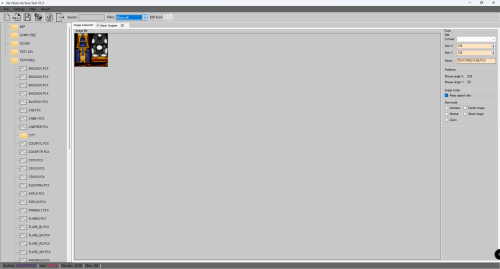
This tool was designed for the archive files that was created by Interactive Vision.
With my tool you can read, extract the content of these archive types, and of course
build them! You can also open the archives to display images in the Image Inspector,
and to display the script files in the IA Vision Scripter.
[Scripts and images]:
My program can edit convert and export the *.pcx images stored in the archives. To display the
content of a script file (*.ini || *.xml || *.txt) or display an image, you do not need to extract the
content of the archives. Supported image formats: (*.pcx || *.png || *.bmp || *.tga).
[Sound files]:
You can also play the audio files (.wav || *.ogg) stored inside the archives with out any extraction.
[Filelist generator]:
You can generate a list of files that was loaded from the archive, and you can export it to see
whether something is missing. It can be useful, if you create or update an archive to see what can
be missing...
[Archive creator]:
This program has a very powerful easy to use archive creator with you can create your
container file fast! Supported formats (*.bin || *.dat || *.htc).
// Installation
To install the tool, please execute the IA Vision Tool.exe file.
// List of supported games. (In this version)
+ Bhunter A.kA. Bounty hunter (full version, Alpha, Beta version)
+ Beyond Pearl Harbor: Pacific Warriors
+ To Serve and Command
// Knowing issues
* There is a *.bsp archive-related issue that causes that we still can not extract the content of the version 2. of the *.bsp archives.
More technical information is needed to update my tool.
IMPORTANT
This tool works well, but I need to implement functions for other games, especially for To Serve and Command game.
For more information, please visit my website: www.theoutforce.hu
- 14 Downloads
Submitted -
ntcompressHelper is a small program that automates the extraction of compressed files with ntcompress.exe by making a batch file.
For Easiest Use: Place the program in the same folder as the .lz files you want to decompress. The folder dialog defaults to the application path itself.
- 14 Downloads
Submitted -
fcp_unpack.exe - unpack .fat/.dat pairs.
Drop .fat onto the tool. It will unpack all files. It will search all .XML files located in the same dir for names.
Names for all files in big primal_main package is here - https://mega.nz/#!IZYlBSKJ!gjrLniO4goeCFlSoQQk_PqhLEGcxW0dd7nH2QqOVcfs
You can go to current dir, and run the tool from somewhere else and specify FAT file somewhere else. So you can place everything in 3 different dirs if you like:
1. dir with the tool
2. dir with fat/dat pair
3. current dir where unpacked files will go (also must have xml files for names)
fcp_pack.exe - repack .fat/.dat pairs.
Just run it in the dir where you have files to pack.
oasis_fcp - modified "dunia tools" strings converter for Far Cry Primal
1. Convert BIN to XML as usual
2. Find line with 0xAEE923DE code and delete it. (This new format somehow has 1 section without lines in it. This is causing the old tool to fail. Maybe it's needed or something, then I'll have to find a way to handle it.)
3. Make changes you need
4. Convert file back to BIN
5. Add "table_fcp" table to the end of the file (This can be done in any hex editor or commander tool, or with command line such as "copy /b oasis.bin + table_fcp oasiswithtable.bin")
6. Pack oasis file into FAT/DAT with my packer tool.
Important note. Patch.fat/dat is loaded before patch_sound.fat/dat so you have to find some other package to replace text, or remove old file from patch. I did this by finding the file hash in patch.fat and changing it. The hash is (F3 F8 E3 5D 29 FD BD F2) for english file. Changing any byte here will "mask" the file so game won't find it. Also if oasis file will be changed, you need to get the new table from the end of original file.
oasis_fc4 - strings converter for Far Cry 4
Same for FC4
- 173 Downloads
Updated




.thumb.png.52ce406a312cb8b82140914cf7ad1783.png)