Leaderboard



Popular Content
Showing content with the highest reputation since 09/02/2025 in Files
-
12 pointsHere is the archive of all my source code as of July 2026. (with the exception of very few files related to asset encryption) You can use my sources for any free, non-commercial projects. However, as has always been the case, I'm against commercial, paid usage or paywalls. This includes selling tools, mods or models. There are also around 40 earlier projects related to audio/sfx/music extraction. Those will be published a bit later.12 points
-
9 points
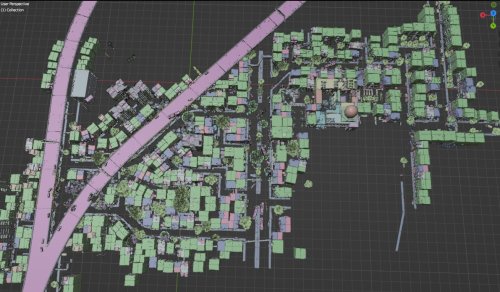 Tools for Battlefield 6. Currently supports dumping the game, export models/maps. Usage is similar to previous tools for frostbite engine. toc_bf6.exe - dump tool Change .ini file parameters: - game path - dump path - selection to dump "ebx", "res", "chunks" or "all" Then drop any .toc file onto .exe to dump assets. Or run from command line with 1 parameter - toc file name. Fb_bf6_mesh.exe - model tool Takes .MeshSet as parameter. ske_soldier_3p.ebx - main universal skeleton for soldiers. Must be in the same folder. If you need another skeleton, use its name as 2nd parameter. Or rename it to ske_soldier_3p.ebx. Tool will try to find chunks automatically. If not, it gives error message with chunk name. Map export 1. Create database Run fb_maps_bf6_db.exe tool once, it will scan whole dump for meshsets and blueprints, so later maps can be converted fast, without the need to go into whole tree of assets. This will take a few minutes. After that, 2 files will be created: bp.db & meshnames.txt, which need to stay in the same folder with EXE for main tool to work. 2. Export maps Use fb_maps_bf6.exe (main map tool) to convert maps. Drop any EBX on it, use in command line with 1 parameter, or create a batch. 3. Terrain export Main terrain data is in .TerrainStreamingTree files for each level. For some levels, these files are small, which means the actual data is in chunks. Sometimes data is in the file itself, in this case it may be big, about 50mb in size. Drop .TerrainStreamingTree on fb_terrain_bf6.exe or use command line.9 points
 -
5 points
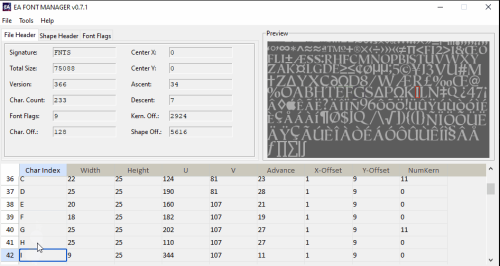 Program for handling FFN, PFN, XFN, MFN and SFN fonts from EA games List of functionalities: - Parsing EA Font files - Preview for font images - Decoding and viewing font flags - Viewing/Editing character table - Exporting font images as DDS, PNG or BMP - Importing font images from DDS, PNG or BMP5 points
 -
 Work in progress, version 0.2 For instructions and support join reshax discord: https://reshax.com/topic/138-reshax-discord-server Its features/usage are same as Horizon Forbidden West tool. Currently, we must be able to replace any mesh and texture in the game. Also can mod anything else (any asset or property) if you know where it is, and its not breaking existing asset layout.4 points
 -
Broken Sword - Shadow of the Templars (1996) * bs1_1996_clu_export.py * bs1_1996_clu_import_and_patch.py Required: Python. When installing, make sure to check “Add python.exe to PATH.” Usage: * Copy the swordres.rif and text.clu files into the same folder as the .py files. * Run bs1_1996_clu_export.py: this will extract the texts into Text_exported.txt. * Translate it, then rename the finished file to Text_translated.txt. * Run bs1_1996_clu_import_and_patch.py: this will insert the translated texts back into text.clu and modify swordres.rif. * The new files will be created with the _new suffix. Tested with GoG (2.0.0.8) and Steam Reforged Free DLC FEARka4 points
-
Syberia Remastered Localization Tool (2025) * Syberia Remastered Localization Tool.py Required: Python. When installing, make sure to check “Add python.exe to PATH.” Usage: * Copy the LocalizationModule file into the same folder as the .py file. * Run the .py file (double-click it). * In the window that opens, select the language you want to edit. * Export the text into a .tsv file. * Add your translation in the Translation column. * Run the .py file again and import your translation back in. * The new file will be created with the NEW_ suffix. Tested with latest steam Build (20969727) FEARka3 points
-
3 pointsRequirements Python 3.10 or newer installed on your system. (Note: Make sure to check the "Add Python to PATH" box during installation. No additional modules are required.) How to use Add your files: Place your original Unreal Engine font files (.uasset + .uexp pairs, or .ufont files) into the source folder. Export: Double-click export.bat. The tool will extract the fonts and save them to the ttf_otf folder. Edit or Replace: Go to the ttf_otf folder and modify the extracted .ttf or .otf files, or replace them with your custom fonts. (Important: The replaced files must keep the exact same names as the exported ones!) Import: Double-click import.bat. The tool will repack your modified fonts back into the original UE formats. Done: You can find your newly generated, ready-to-use game files in the NEW folder.3 points
-
3 points
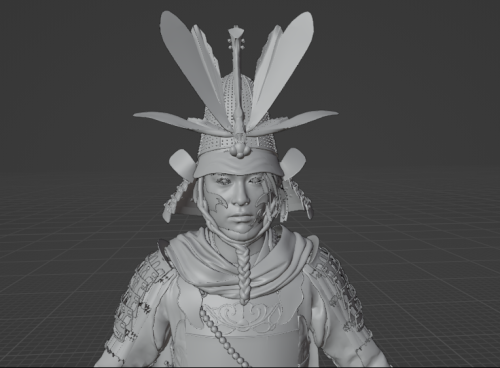 Tool can now export only skeletal models & textures. Works similar to previous tsushima tool, but there are some important differences. Main hero model has too many optional parts (outfits/armors) so i decided to make an optional filter to only output selected parts. Same for NPCs, enemies etc. All models in the game (at least from what i know) are described in XPPS files. Those with names starting from core_common_subcore... There are 12 such files for enemies/npcs/animals etc, and a separate hero.xpps file for main hero. Usage: 1. change path in .ini file 2. drag XPPS file with models onto yotei.exe (or run it from cmd) this will make a list of all skeletal meshes in that file 3. copy new created .txt file and name it filter.txt then edit it (if needed) - delete some lines, so it only has the part you need 4. repeat step 2 this will now export models and material lists Texture export: run the tool from command line: yotei.exe tex This will export ALL textures. If you only need some, remove unwanted textures from cache_ps5\bitmaps folder Important notes: - some meshes (mostly heads) have double skins (two sets of weights/bone indices), which require to setup 2 skeleton modifiers to work properly. This feature will be described later in more details; - some meshes are borrowed from other xpps files, this is not yet supported; - alternate materials not yet supported. Double-skinned meshes: Those will be exported to ascii file with double count of bones in the skeleton, first starting with "b_" and second starting with "bx_". In this state, merged skeleton will work incorrecty, its only done this way to make 2 sets of vertex groups, one for each skin (armature modifier). For example, human heads have 2 skins: facial and body. Another example is seagull, using one for wing deformations, and another one for main body. To make it work, delete main skeleton, import one or both separate skeletons (named as _skb.ascii & _skx.ascii) and apply them to the same mesh. Note that modifiers must be applied to work sequentially, not mixed. This way you can first apply facial impressions, and then move main body bones of a model. Checked to work in blender. If its too complicated, just apply only one skeleton whenever you need facial or body modifier.3 points
 -
3 points
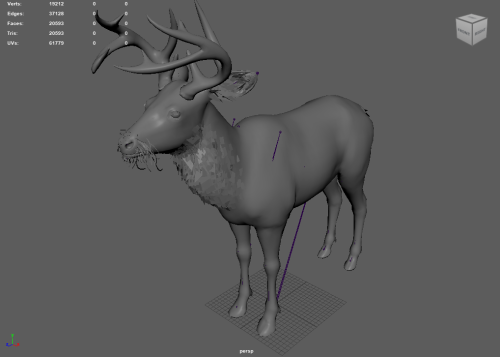 Extremely early version of tool, can export a good portion of models in game, some will fail due to version (investigating if this is due to them being old files, or if the game genuinely has a different code path for them, as I can only see 1 in the exe). Some will also fail due to WIP issues with mapping LOD indices (errors or corrupt mesh output) Drag and drop Alan Wake 2's folder onto the exe/pass it via CLI and it will export all binfbx files in the archives. Currently only exports models with material names/skeleton, references to textures and other data is a heavy work in progress, but I felt it was best to get an early version out that can at least export mesh info. Requires Cast plugin to import into Blender/Maya for now, more formats will be supported later: https://github.com/dtzxporter/cast Janitor.CLI.7z3 points
 -
3 points
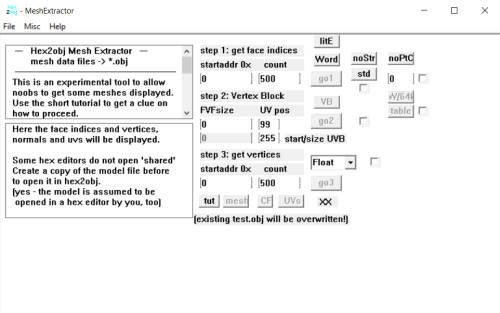 The "Download this file" button links to the old version (which I can't get rid of). Download the appended zip file instead! This tool is meant to take the mesh data from the mesh you want to convert into OBJ (you have to load the model file into the program). You will also have to use a hex editor to find the model's mesh data offsets and counts and then copy them into hex2obj. Depending on these parameters it will convert the hex data into an OBJ file (File/SaveAs mesh) that you can then import into your preferred 3D Program (3DS Max, Blender, Maya, etc) hex2obj_0.25b.zip3 points
 -
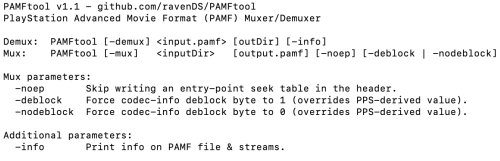 PAMFtool is an open-source muxer & demuxer for PlayStation Advanced Movie Format (.PAMF, .PAM), often found in PS3 games. The goal of this project is to provide an open-source solution for preserving PAMF videos without relying on SDK tools. Source code is included in the zip, the tool is still in development. Supported streams:- AVC (H.264) video streams - M2V (MPEG-2) video streams - ATRAC3 Plus audio streams - LPCM audio streams Requirements.NET 8.0 (or higher) Supported platforms: Windows, macOS, Linux. Usage & Parameters-info - Print information about a PAMF file and its streams -demux - Demux all streams from an input PAMF file and write them to a subfolder -mux - Mux all streams contained in a folder into a new PAMF file Additional -mux Parameters-noep - Skip writing an entry-point seek table in the PAMF header -deblock - Force the codec-info deblock byte to 1 for AVC streams -nodeblock - Force the codec-info deblock byte to 0 for AVC streams -noatsc - Ignore any 'atsc' RIFF chunk in .at3 inputs -pace <v> - Set SCR pacing rate. See -h for values -pstd <KB> - Override AVC P-STD buffer size in KB -mmb <n> - Override max_mean_bitrate byte in AVC codec_info -ps2-block <n> - Override private_stream_2 marker cadence in AUs -muxrate <KBps> - Override pack_header mux_rate (48000, 24000, or 12000) -std-delay <ticks> - Override std_delay_bound. See -h for values -initial-scr <ticks> - Override SCR value at pack 0 (auto-detected) Notes- While the demuxer is fully functional, the muxer is still experimental. PAMF files rebuilt with this tool work in all tested PS3 games so far. - Raw H.264 data does not play in most video players. Use ffmpeg to mux it back into a more conventional container format. GitHub RepoGitHubGitHub - ravenDS/PAMFtool: PlayStation Advanced Movie For...PlayStation Advanced Movie Format (PAMF) Muxer/Demuxer - ravenDS/PAMFtool2 points
 -
2 points
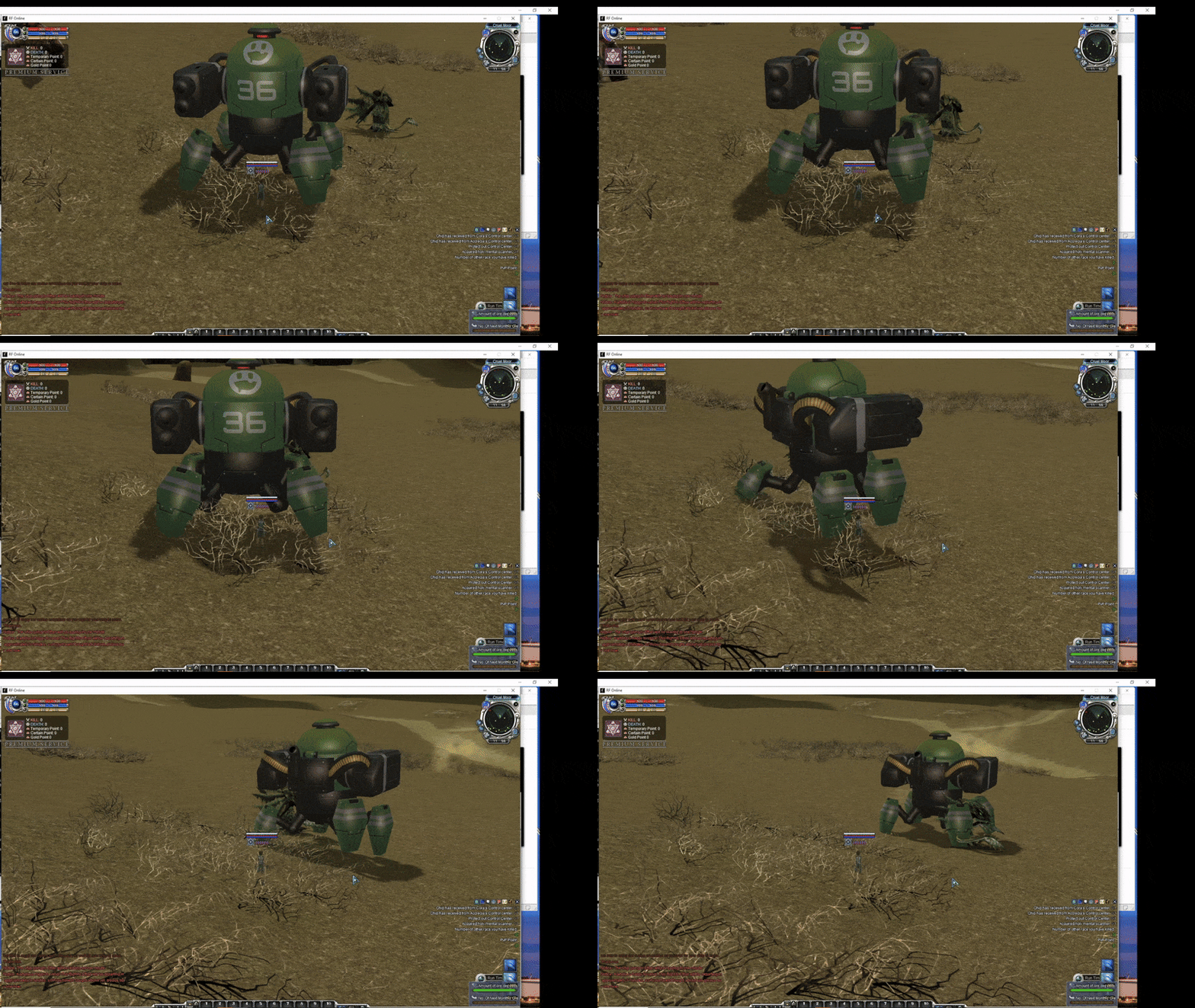 An addon for Blender 5.0.0 to import and export the .msh, .bn (.bbx goes together) and .ani files for RF Online. The entity (R3E) and map (BSP) formats are import only. Import operations work with drag and drop. There is code for exporting the BSP format inside the addon code but it is deactivated due to being incomplete. It only reaches so far as actually exporting walkable map geometry (with the BSP structure also built) and baking+exporting the light maps. Unfortunately, Blender proved to not be very suitable for the task of actually being a complete map editor for RF Online, mostly due to complexity issues with the .SPT particle format and other desirable features that would be hard to implement into it, such as mob spawn areas and portals. The R3M materials are also quite hard to simulate, since the original engine rendered the same mesh multiple times for each texture layer they had. It is possible to reactivate the feature by manually uncommenting the three commented lines in the bsp.py's menu_func_export, register and unregister functions. Expect no support for this feature, as the more proper solution would be writing a proper dedicated software. Current Features: MSH (Mesh) Import: Imports .msh static meshes (Standard and MESH08 formats). Automatically attempts to find and assign textures by looking for DDS files referenced in the mesh or by searching .RFS archives in expected relative paths (../Tex/). MSH (Mesh) Export: Exports selected Blender mesh(es) to .msh format (Standard or MESH08). Handles vertex data, UVs, weights, and bone assignments. The export ignores any collection with the name "bone shapes". Objects can have multiple materials in Blender, but only the first texture connected to the Base Color input of the BSDF Principled shader node will get its path exported. BN (Skeleton) Import: Imports .bn skeleton files. Reads bone hierarchy and rest poses. Automatically looks for the corresponding .bbx file (must be same name, same folder) to get the proper skeleton name. Creates Blender Armature objects. Also imports custom bone shape geometry if defined in the BN file and creates mesh objects for them, assigning them as custom shapes in Blender. BN (Skeleton) Export: Exports a selected Blender Armature to .bn format. Calculates and exports the corresponding .bbx file with skeleton name and bounding box. Exports custom bone shape geometry if assigned. ANI (Animation) Import: Imports .ani animation files. Applies animations to compatible Armatures and/or Objects based on names found in the ANI file. Creates Blender Actions. Option to target selected objects or objects within a collection matching the ANI's base name. ANI (Animation) Export: Exports Blender Actions to .ani format. Bakes complex animations (constraints, drivers, NLA) before export. This option currently exports ALL actions in the scene at once. Exported animations get their names from the action names inside Blender. One .ANI file is created for each action. BSP (Map) Import: Imports .bsp map geometry. Reads associated .r3m (materials), .r3t (textures), and .ebp (entities, collision) files (must be same base name, same folder). Locates entity assets by parsing .rpk archives found in ../Entity/ relative to the BSP's directory. Instantiates map geometry, materials (replicating many R3M effects), and R3E entities. Includes an option to import and display LDR lightmaps from Lgt.r3t files. There is also an option for creating a visualization of the actual BSP structure of the map by creating boxes with the nodes' dimensions and leaves with the appropriate geometry, however this will most certainly make the Blender scene run very slow (this option is not necessary to see the actual map at all if that's what you want). R3E (Entity) Import: Imports .r3e files together with their associated .r3m and .r3t files. Also imports animations, if present. Installation: Download the repository as a .zip file. Or simply download the embed file here. In Blender, go to Edit > Preferences > Add-ons. Click Install... and select the downloaded .zip file. Enable the "RF Online importer/exporter" addon by checking the box next to it. Dependencies (only necessary if you want to manually try the BSP export option) DDS Export (.bsp): Exporting BSPs requires ImageMagick to be installed and accessible in your system's PATH. The addon uses it to convert textures to DDS format. Download from: https://imagemagick.org/script/download.php Important: During installation, ensure you check the option to "Install legacy utilities (e.g., convert)" as the addon uses the magick convert command. How to Use: Import: Find the RF Online importers under File > Import > ... (MSH, BN Skeleton, ANI, BSP, R3E). Export: Find the RF Online exporters under File > Export > ... (MSH, BN Skeleton, ANI). Operator Options: Each operator has options. Pay attention to options like: MSH Export: Mesh Format to Export (Standard/MESH08), Collection Type to Export. ANI Import: Apply to Selected Objects, Ignore Not Found Objects. ANI Export: Action(s) to Export. BN Export: Export only selected. Debug options are available for troubleshooting. If turned on, open Blender's console to see the messages. Expected File Structure & Naming Conventions The addon relies on specific file names and relative folder locations to find associated assets: BSP Import (map.bsp): Needs map.r3m, map.r3t, mapLgt.r3t (optional), map.ebp in the same folder. Needs entity RPK archives (e.g., entity.rpk, monster.rpk) located in ../Entity/ relative to the map.bsp folder. The addon parses these RPKs to find the .r3e, .r3m, .r3t, etc., files for map entities. MSH Import (mesh.msh): Will look for texture paths defined within the MSH. If not found directly, it attempts to find textures in .rfs archives located in ../Tex/ relative to the .msh file's folder. BN Import (skeleton.bn): Needs skeleton.bbx in the same folder to read the proper skeleton name and overall bounding box. Export Naming:MSH Export: Selected Objects: Uses the filename you provide in the export dialog (e.g., my_export.msh). Active Collection / All Collections: Uses the collection name as the base filename in the selected directory (e.g., exporting a collection named "Props" to D:/Exports/ results in D:/Exports/Props.msh). Any collection named "bone shapes" is ignored and not exported when present. This is done to prevent the exportation of bone shapes as new .msh files. BN Export: Similar to MSH Export (uses selected armature name or collection name). Writes both .bn and .bbx files (e.g., skeleton.bn, skeleton.bbx). ANI Export: Uses the Blender Action name as the filename in the selected directory (e.g., an action named "Walk_Cycle" exports as Walk_Cycle.ani). Current Limitations / Disclaimer: BSP Export is DISABLED: While the addon includes the code for that, the operator to export a full .bsp map (including geometry, materials, entities, and baked lightmaps) is currently disabled in this release. BSP export is extremely complex, and this feature is incomplete. Performance: Importing very large maps or exporting complex scenes may take time due to Python processing. You can see the importing progress if you've opened Blender's console before importing a map. R3M Effects: While many material effects are replicated using shader nodes, perfect 1:1 visual parity with the original D3D8 fixed-function pipeline can be challenging. MSH exporter does not export effects currently. Download Link: https://github.com/Cardboard-box-a/cbb-rf-online-addon (download the repo as a zip), or the file embed here. Bug Reports/Suggestions: [The github's Issue page might be more suitable for keeping tracking of possible issues] Overall the import part of the addon expects that you are using it to import files from a real game client, with the original folder structure. Meshes, for example, can be imported without their associated textures if the original folder structure is not present. The .MSH exporter splits meshes that have more than 65k vertices automatically which has been tested by the .msh importer itself, but actual experience in the game is welcome to be known. Different materials in an object will also trigger a split. Uploaded in this post itself is a zip containing ImHex patterns for some of the file formats I've worked on. Hopefully this addon will prove useful for creating custom content for such an old game, or at least to satisfy the curiosity of what the game looks like behind the curtains. Patterns.zip2 points
 -
2 points
 This tool is a dedicated utility designed for modifying Konami games on the PlayStation 1 (PSX). It specifically manages .FAD files, which are proprietary archives used by Konami to store game data. Key Features: Unpacker: It allows you to extract the contents of .FAD archives, giving access to internal game assets such as textures, models, and audio. Repacker: It enables you to rebuild valid .FAD files from extracted folders. This is crucial for inserting modified files back into the game ISO. Compatibility: The tool supports a variety of Konami titles on the PS1 that utilize this specific file structure. FadTool-Konami 1.01.zip2 points
 -
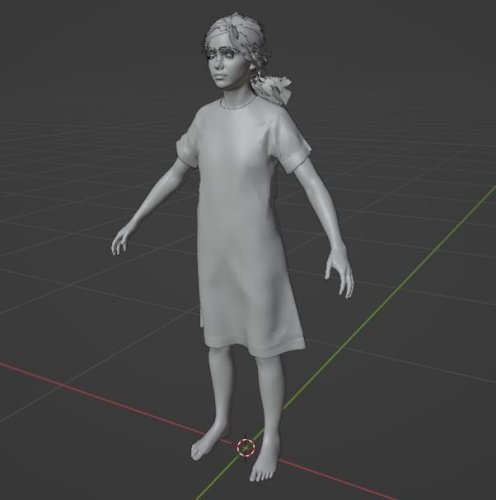 My old tool for TLOU2 PS4 fixed to work with PC files. Unpack .psarc files with UnPSARC_v2.7, and then you can use any .PAK file with the tool. Use command line, or just drop .PAK file onto the .exe Work same as old tool, described here: https://web.archive.org/web/20230819184855/https://forum.xentax.com/viewtopic.php?t=22580 After extraction, model and skeleton are in separate files. So they must be manually combined to work together. SMD model & skeleton can be just imported separately and then connected in blender. For ascii it will not work, so you have to open model in text editor, remove first line (0), which is bone number, and copy-paste skeleton there instead of that zero. So far tested on models, textures, maps - all looks fine. Animations are probably wrong, i can look into that later.2 points
 -
2 points
-
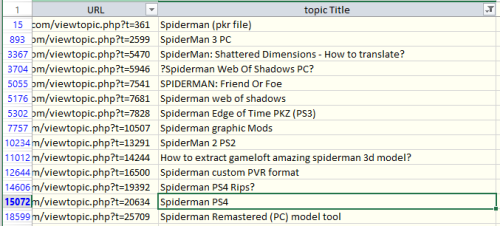 Here is a list of all (or almost all) Xentax topics archived by wayback machine. Find topic name with search or filter (see "spiderman" screenshot as example), then copy URL for the list, and open it. There you can read the whole topic, with instructions and comments. But there will be no attached files. You can get attached files from archive.org - https://archive.org/details/xentax.7z in "attachments" folder. They are sorted by forum number and topic ID. So you have to look into corresponding forum folder (16 = 3d models in this example) and topic folder (20634 for spiderman PS4) - there you can find all files attached to that topic for each post (in there are many).2 points
 -
A Pague Tale Games Font and Localization Tool - FEARka Tools for editing text and font files from all three A Plague Tale games: Innocence, Requiem and Resonance. It supports .pc and .IGN file export, import and comparison, as well as DPC font extraction, TTF/OTF atlas rebuilding and font import. The package includes separate GUI applications for localization and font editing. Python 3.10 or newer is required. Font atlas rebuilding uses the included msdf-atlas-gen.exe. Testing has been performed with the BIG_FONT, SMALL_FONT and SMALL_FONT_02 mappings, using the included TTF files and their default font sizes. Other mappings, fonts or custom sizes may require additional testing.1 point
-
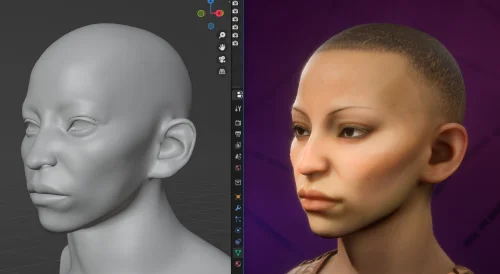 Tools allow to export custom player head from Character Creator, and any NPC with custom head like Felassan. There are 300+ head_preset.ebx files in the game for such NPCs. For brief usage see readme.txt inside, I will make detailed instructions here later.1 point
 -
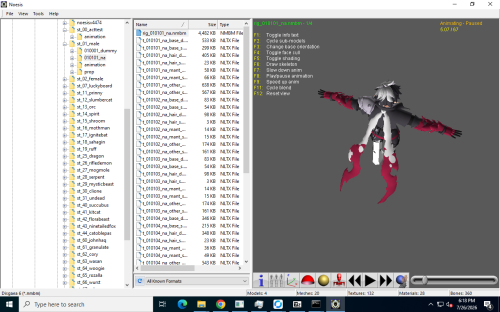 A tool which was refractored from this old current script but upgraded to support this game with minor fixes. https://reshax.com/files/file/28-disgaea-6-monster-menu-disgaea-7-archive-decompilation-texture-and-model-extraction-toolscripts/1 point
 -
A tool that extracts the SCEE London Studios PS3 PACKAGE (.PKF, .PKD, .PAK, .PKG, .THEMES) files. It supports all of its known variants - plain, compressed, encrypted, 32/64-bit. Compiled for 64-bit Windows, Linux, and macOS (x86+ARM). Usage is simple: scee_london "/path/to/pack.pkd" [options] Options are as follows. DRM Key refers to your PS3's unique OpenPSID for decrypting SingStore DLC. -o | --output <str> "/path/to/out_dir" -k | --drmkey <str> "0123456789ABCDEF FEDCBA9876543210" -d | --dump Only decrypt or encrypt PACKAGE file Alternatively, on Windows it's also possible to just drag and drop the PACKAGE file onto the executable.1 point
-
This is attachment from ZenHAX posted by spiritovod in topic: Unreal Engine 4 pak-file Unpacker / unreal_tournament_4.bms [UE4 global topic]1 point
-
 Tool for World of Final Fantasy animations. Supposedly can export any animation to .smd format. Usage: woff_anim <mpk> <mdl> .MPK is animation pack .MDL is model (needed for bone names) Also including bms script for archives and 3ds script for models made in 2017/2018 by Random T Bush1 point
 -
1 pointCollection of Python CLI utilities for extracting, inspecting, and rebuilding Shadow of Mordor asset formats.1 point
-
1 point
-
1 point
-
1 point
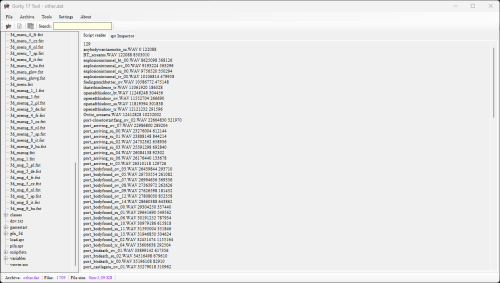 // Gorky 17 Modding tools GUI .:: Introduction ::. Gorky 17 Modding Tools is a powerful utility that lets you extract and build .kdt and .dta archives. It supports both single-file (selected file) and full archive extraction. In addition, the program includes an SPR-to-image converter, file list generator, script reader, image inspector, and many other useful features! .:: Knowing issues ::. There's an unknown issue with the .spr files. They can be read, displayed, and converted to any image format, but I assume there’s a problem with the RLE compression. The investigation is in progress, and this issue will be fixed in the next update. .:: OS Support ::. Built and tested on Windows 11 64 bit. The native linux version of the tool will be released soon. .:: Special thanks to ::. Krisztian Kispeti, Lead Dev: K's Interactive.1 point
 -
 Work in progress, build 0.7 For instructions and support join reshax discord: https://reshax.com/topic/138-reshax-discord-server Currently, we must be able to replace any mesh in the game, including Aloy and other characters, robots, or environment parts. Also possible to replace most textures.1 point
 -
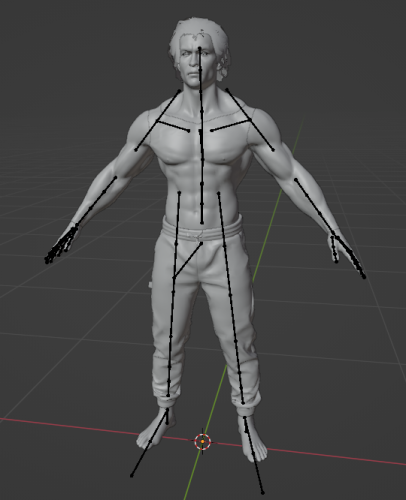 Dying Light [3] The Beast tool, can export models/textures, works same as Dying Light 2 tool: DyingLight3.exe <rpack_file> Or just drop rpack onto the tool. All main textures are in common_textures_0_pc.rpack, GUI images in gui_common_pc.rpack All models are in common_meshes_pc.rpack1 point
 -
Custom model import tool v0.4 beta + model export (from .model to .ascii) Usage: spiderman_2_pc_mi_04.exe <model> <ascii> <materials> You can use models previously converted form the game: export .model file with ModdingTool, then pass it to spiderman_2_pc_model.exe This will output a model in .ascii format, and materials.txt. Note that due to new LODs/lookgroups layout, export tool now exports ALL meshes with all LODs. You may want to delete lower LODs before importing back to game.1 point
-
 With this tool, you will be able to decompress and compress, unpack and pack the .bin files related to the game's texts and maybe graphics.1 point
 -
1 pointThis is attachment from ZenHAX posted by rengareng in topic: Metro: Exodus vfx unpacker1 point
-
1 pointThis is attachment from ZenHAX posted by Delutto in topic: Ubisoft ANVIL Engine (*.forge) [ONLY FOR TESTS]1 point
-
1 pointThis is attachment from ZenHAX posted by petventh in topic: JX3 HD Remake ??3 (.dat files)1 point
-
This is attachment from ZenHAX posted by ponaromixxx in topic: Deus Ex: Human Revolution - Director's Cut (locals.bin)1 point
-
1 pointThis is attachment from ZenHAX posted by spiritovod in topic: [HELP] PSB files [image_body.bin, image_info.psb.m][Nitendo Switch]1 point
-
1 pointThis is attachment from ZenHAX posted by id-daemon in topic: The Crew 1/2 models tool1 point
-
1 pointThis is attachment from ZenHAX posted by id-daemon in topic: The Crew 1/2 models tool1 point
-
1 pointThis is attachment from ZenHAX posted by bornaghi in topic: Sniper Ghost Warrior Contracts 2 - How to import file txt to xml ?1 point
-
1 pointThis is attachment from ZenHAX posted by makc_ar in topic: [SWITCH] Megadimension Neptunia VII1 point
-
1 pointThis is attachment from ZenHAX posted by id-daemon in topic: GT6 (Gran Turismo 6) [PS3]1 point
-
1 pointThis is attachment from ZenHAX posted by spiritovod in topic: Unreal Engine 4 pak-file Unpacker / unreal_tournament_4.bms [UE4 global topic]1 point
-
This is attachment from ZenHAX posted by by-freon in topic: Unreal Engine 4 pak-file Unpacker / unreal_tournament_4.bms [UE4 global topic]1 point
-
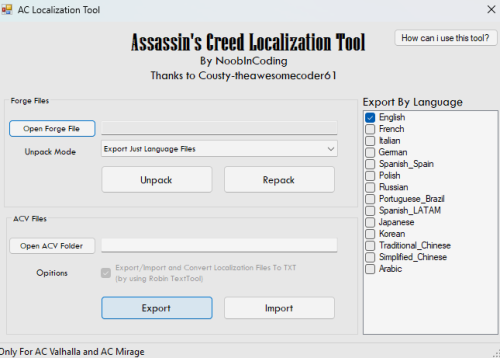 Localization tools for game. Currently NOT WORKING with AC: Shadows Made by NoobInCoding, thx P.S using this as sample for tutorial as well..1 point
 -
1 point
 Final Fantasy VII Rebirth tool Exports static and skeletal characters, maps (including nanites). In addition to all DLLs provided here, it requires global.ucas file from the game, it must be in the same folder as .EXE. Usage is similar to previous FF7remake tool. See below. Main difference is that nanite maps (using nanites) are exported in DMF format (download blender plugin for it here). Tool usage: You can use the tool to convert individual assets, or all assets in a folder. 1. To convert one asset, drop asset file onto the tool, or run the tool from command line with asset filename as parameter. If asset file contains a texture, it will create "texture.db" file with information for later use in map extraction. If asset file contains static or skeletal mesh, in will be exported to ASCII. Raw data will also be saved in "staticmesh.raw" & "skeletalmesh.raw" folders for later use in map extraction. If asset file contains a material, it will export material info in a text file, and create "material.db" file with information for later use in map extraction. If "material.db" file already exists next to the tool, it will be updated with newly found materials. If asset file contains a blueprint, it will create "blueprint.db" file with information for later use in map extraction. If "blueprint.db" file already exists next to the tool, it will be updated with newly found blueprints. 2. To convert all assets in a folder, place the tool in that folder and run it. Tool will search that folder and all subfolders for .uasset files and try converting them all. When prompted "are you sure?" you can press "enter" to confirm or Ctrl-C to cancel. 3. To convert maps, drop .umap file onto the tool, or run the tool from command line with umap filename as parameter. Current version will extract static meshes, skeletal meshes, blueprint-generated meshes and nanite "terrain streams" from a map. For map extraction to work, "staticmesh.raw" and "skeletalmesh.raw" folders with previously extracted data must be in the same folder with the tool. If some models will be missing, tool will give messages. If "blueprint.db" file will be next to the tool, it will try and place all models mentioned in blueprints on the map. There's no proper blueprint support, so some models may be placed incorrectly. If "texture.db" file will be next to the tool, it will be used to assign proper material names to nanite parts of a map instead of hashes.1 point
 -
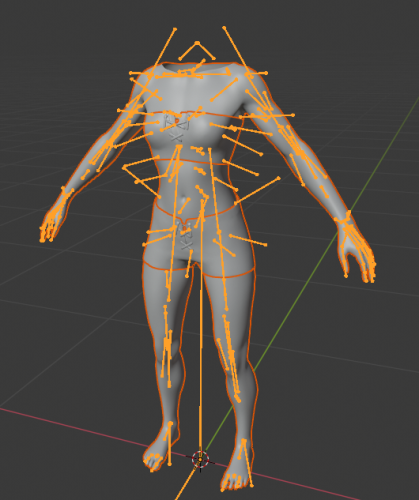 Dragon Age The Veilguard tools. Work same as my previous frostbite tools. toc_dav.exe - dump tool Change .ini file parameters: - game path - dump path - selection to dump "ebx", "res", "chunks" or "all" Place oo2core_9_win64.dll from the game next to the tool. Then drop any .toc file onto .exe to dump assets. Or run from command line with 1 parameter - toc file name. Main file is default.toc, voice files are inside subfolders - en.toc and other languages Fb_dav.exe - model tool Takes .MeshSet as parameter. rgz_skeleton.ebx - main universal skeleton for all humanoids. Must be in the same folder. Game has 2 skeletons with this name, you need the one from "techanim" folder, which is bigger. If you need another skeleton, use its name as 2nd parameter. Or rename it to rgz_skeleton.ebx. Tool will try to find chunks automatically. If not, it gives error message with chunk name. Set of smd files - to fix distorted faces They are 2-frame animation files to transform head model to its normal state. fb_strands.exe & fb_strands_c.exe - hair tools Each hair model has .StrandHairResource and .StrandHairSet files, and also a small EBX file (about 5kb in size) next to it which has its parameters, including the initial position. This EBX file is usually called the same, with _strand_model.ebx or _model.ebx in the end of its name. Tool takes 2 or 3 parameters: fb_strands.exe <StrandHairResource> <StrandHairSet> [EBX] First 2 parameters are required, but if you add EBX in the end, it will try to place static part correctly. fb_strands_c.exe is experimental version for curly strands. It looks more or less fine, but not 100% proper, so i'm calling this tool experimental. Later it may be improved. Hairs will be exported as 2 OBJ files (one for flowing, one for static part) with curves, which can be later converted to meshes or particle systems in blender or other editor. OBJ files will have hair groups marked, which can be useful for rendering.1 point
 -
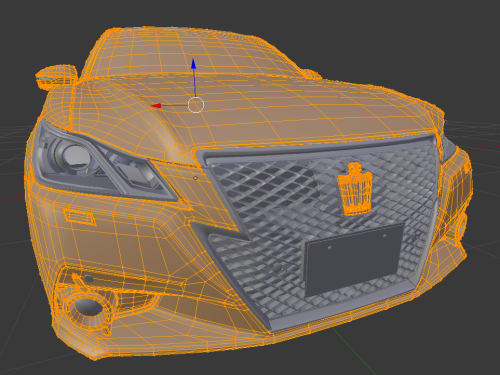 GTS_MDL is the tool for models. Current version extracts static models and textures. Skeletal models also supported, but will be exported static. Car wheels and some other parts will be not in correct positions. This may be corrected with future adding their skeletons and weights. You can convert maps (tracks/courses) with this tool, after you extract the track from PACK file with GTS_Pack tool. IMPORTANT NOTE. The tool extracts the highest LOD of game data. Many car parts are using tesselation. These meshes are marked with "_T" in their name. Thats why they look like they are low detail. But actually those are highest quality meshes. This tech was also used in GT6. Usage: drop model file onto the tool. OBJ & ASCII files will be created. ASCII will have all UV layers. GTS_PACK is the tool to unpack PACK files, which contain tracks. It will hopefully unpack ANY pack from GTS, not just tracks. Thats how it works: Any pack contains a few sections usually 2: SYS and VRAM naturally its data loaded into system and video memory these sections have names after unpacking, you will see all of them in subfolder then you must know that the usual model files are combined data for SYS and VRAM so to make it work, you have to MERGE 2 parts of the PACK into one for example you have world.sys & world.vram merge them (sys first) and then model tool will convert it You can merge files via any tool you have for it, or windows command. For example: copy /b WORLD.SYS + WORLD.VRAM WORLD1 point
 -
1 point
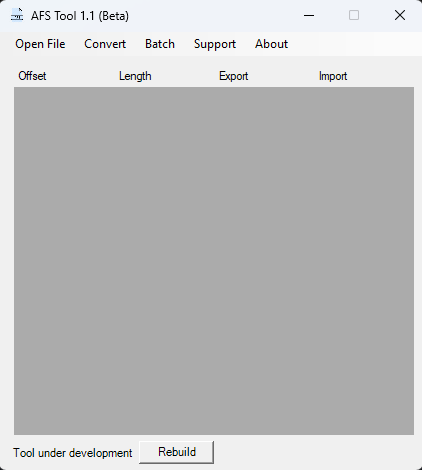 Tool to explore .AFS files. Also include - Audio Converter currently support ADX, WAV - Video Converter - currently support PS2 : MPG, PSP : AVI Tested in Games SmackDown vs RAW 2011 PS21 point
 -
1 point
 Can be used via GUI or CLI. If your antivirus detects exe/zip files as viruses, it's just a false positive. I don't know why every time I compile a .py to .exe using Nuitka, it always gets detected as a virus.1 point
 -
1 pointA QuickBMS script to extract all of the data from Alan Wake 2's RMDTOC/RMDBLOB files.1 point
-
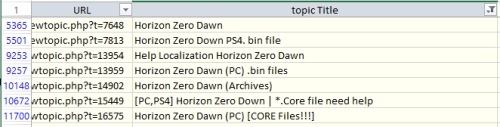 Uploading all my tools will take a lot of time, so this is temporary solution. Most of my tools were released on zenhax, and now available with wayback machine. But how to find them? Here is a list of all topics from Zenhax archived by wayback machine, including attachments and inline scripts. Find topic name with search or filter (see "horizon zero" screenshot as example), then copy URL for the list, and open it. This way you can download almost all of my tools. And also all tools/scripts published by others through the years.1 point






.thumb.png.52ce406a312cb8b82140914cf7ad1783.png)