Leaderboard




Popular Content
Showing content with the highest reputation since 10/29/2023 in all areas
-
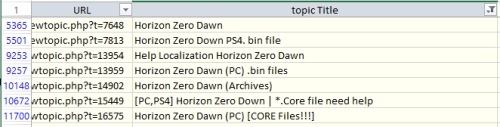 Uploading all my tools will take a lot of time, so this is temporary solution. Most of my tools were released on zenhax, and now available with wayback machine. But how to find them? Here is a list of all topics from Zenhax archived by wayback machine, including attachments and inline scripts. Find topic name with search or filter (see "horizon zero" screenshot as example), then copy URL for the list, and open it. This way you can download almost all of my tools. And also all tools/scripts published by others through the years.30 points
 -
29 points
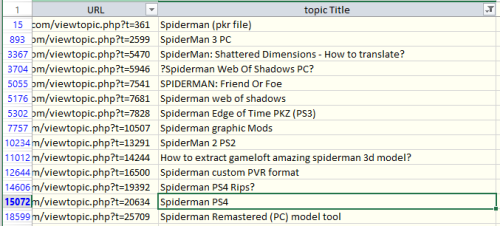 Here is a list of all (or almost all) Xentax topics archived by wayback machine. Find topic name with search or filter (see "spiderman" screenshot as example), then copy URL for the list, and open it. There you can read the whole topic, with instructions and comments. But there will be no attached files. You can get attached files from archive.org - https://archive.org/details/xentax.7z in "attachments" folder. They are sorted by forum number and topic ID. So you have to look into corresponding forum folder (16 = 3d models in this example) and topic folder (20634 for spiderman PS4) - there you can find all files attached to that topic for each post (in there are many).29 points
 -
18 pointsHello. I would like to share with you my private tutorial links collection. These are useful topics from Xentax, Zenhax and any other reverse engineering related sites that I was able to find in the Internet. I have put them into categories. You may encounter situation when one tutorial fits to few categories, but it is placed only in the category that it fits most. Also, you may encounter tutorials with "[PL]" mark, these are tuts in Polish language. If you don't understand this language, just skip them. Also be aware that I haven't read/watch some of these tutorials yet, so I can't recommend you which tutorial is the best choice, sometimes I'm still learning new things just like you and on this list you may find tuts that are not very useful for you, so don't blame me for that. 🙂 Just pick your favourite category and start learning. If you are complete newbie, I would recommend to start with tuts from category "Basic knowledge". If you have any other good source of knowledge, you can write a comment below and I will update this tutorials collection. Also remember that those links may be dead some day, so don't blame me for that and just make a copy for private use 🙂 So that's it. Enjoy. 😄 Links to tutorials: Basic knowledge (you should start with these if you are new to reverse engineering) - Definitive Guide To Exploring File Formats - Beginner Learning Materials on Reverse Engineering Video Games - What is a File Format? - Analyzing and Reverse Engineering a Game Archive - Key points to successful hex reading - Overview of game file formats and archives - REWiki - Reverse engineering hints - HOWTO-Reverse Engineering - How to translate a ROM QuickBMS - [TUTORIAL] What is QuickBMS? How to export and import with QuickBMS? - QUICKBMS GUIDE - QUICKBMS GUIDE 2 ZLIB - QUICKBMS GUIDE 3 IF ELSE - Basic BMS Scripting - QuickBMS documentation - QuickBMS crc engine - QuickBMS - Reimporting files in the archives - QuickBMS - Scan all the supported compressions - Example of archive format reversing with QuickBMS (medium) - Practice with archives and quickbms scripts - [TUTORIAL] Making BMS Scripts MultiEx scripting - MultiEx Commander Manual - MultiEx Commander 4.5 YouTube tutorials - MexScript Documentation - Let's MultiEx Encryption tutorials - How to guess basic obfuscations: xor and sum/rot - Reverse simple decryption - Reversing AES Keys UE4 + AES Keys Collection - How To Get PAK RSA Key (Wolcen / CryEngine Games) - Retrieving ZIP passwords from games - the zero skills way - Retrieving ZIP passwords from games - the debugger way - Retrieving ZIP passwords from games using plain-text attack - Hacking Zip Passwords (C9) - Checksum / CRC scanning - Decrypt any vita game (no custom firmware needed) - How Unpack Themida 2.x.x or How Unpack Themida 2.x.x (WXP) - SM Hasher / Murmur3 hash + Wiki + Python implementation - LCG + sources + Cracking LCG + LCG in VC2 - Decrypt unity 3d files with Frida - [Tutorial] How to get Allegro passwords Hash tutorials - [Tutorial] How to restore hashed filenames from archives Compression tutorials - How to recognize the compression algorithms with your eyes - LZMA SDK (binaries + source code + specification) + LZMA Wiki - Bc7 and bc5 decompression and compression - Offzip - deflate/zlib scanning and extraction - ZSTD compression + documentation - Reverse Engineered old Compression Algorithm for Frogger - Oodle Data Compression + Oodle compressor + Oodle wiki page - RLE Compression explained + RLE Wiki + RLE in Python - LZ77 explained + LZ77 encoding + LZ77 decoding + LZ77 in Python - LZSS Compression + LZSS explained - LZ Compression + Open-source LZ Compressors Debugging / Decompilation / Disassembling - Lenas Reversing for Newbies - Reversing Spider-Man 2000 - Real World Decompilation with IDA Pro - IDAPython conditional breakpoints - The Beginner's Guide to IDAPython - Using IDAPython to Make Your Life Easier Part1 + Part 2 + Part 3 - Reverse Engineering with Ghidra - How to Reverse Engineer with IDA Pro Disassembler - How to reverse engineer functions - Debugging “Dust: A Tale of the Wired West” - Reverse Engineering Dust: Uncovering Game Scripts - Reverse Engineering an Xbox360 Game - Reverse engineering C programs - bin 0x10 - Memory Hacking — External Signature/Pattern Scanning Tutorial - Remote Debugging with IDA Pro (Windows) + Connecting host with VirtualBox - Remote Debugging with IDA Pro (Linux) - Basic IDA Python Scripting Hooking / DLL Injection - Simple C++ DLL Injector Source Code Tutorial - Quick and EZ - Dll Injection Explained (how it works + source code) - Manual Mapping DLL Injection Tutorial - Blizzhackers DLL Injection - API Hooking and DLL Injection on Windows - [PL]ReverseCraft #7 - Inline hooks, DLL injection - [PL]DLL INjection by Maciej Pakulski (PDF) - C++ Detour / Hooking Function Tutorial - [Tutorial] The different ways of hooking - API Hooking with MS Detours + MS Detours 4.0.1 description + source - Hooking tutorials - Inline hooking in Windows - C++ Internal Trampoline Hook Tutorial - OpenGL Hook - MinHook - The Minimalistic x86/x64 API Hooking Library + source on github - DLL Hijacking - [Tutorial] Simplest function hooking with IDA, Detours & C++ - [Tutorial] DetourFunction __thiscall - How to Hook Functions - Code Detouring Guide - Resources About Hooking - [Tutorial] Hooking Java Functions - [TUTORIAL] Hooking Android bytecode with Frida Console Tutorials - PS2 Texture Swizzling - PS1 LibCrypt tutorial + LibCrypt Sectors Mappings + LibCrypt Bible - Gears: A look Inside the Final Fantasy VII Game Engine - Convert Ps3 to Debug 4.21 - Extract Samples and MIDI files from Square PS2 Games - Extracting Xbox 360 game files - Reverse Engineering Xbox360 SaveGame (Dead Space) - Extract + Decrypt 3ds Roms - [HOW-TO] Assembling 3DS Homebrew for Gateway - [Tutorial] How to Decrypt, Extract & Rebuild 3DS|CIA|CXI Files - PS2 Hidden files + this + this + this + IsoBuster + Ratchet and Clank PS2 discoveries + Ratchet and Clank Hidden files extractor + this - PS2 Modding Tutorials + PS2 Modding Tools + PS2 AIO Project - [TUTORIAL] [PS2DEV] An Introduction to PS2DEV and it's History - Racing Lagoon Hacking Deep Dive (Translating PS1 games - tutorial) DOS Tutorials - DOS games reverse engineering guide - DOS file formats / encryptions / compressions etc. - DOS game "Nomad" (1993) documentation and tools Audio - The basics of VGM ripping + VGM Ripping Tools - Common Sound Formats - How to scan audio codecs with ffmpeg - Tutorial on vg-resource - Extract Binary Domain's Music/Sound (CRI .cpk bgm) - Batman Arkham Knight - Extract Soundtrack - Multimedia Wiki (Audio, Video, Codecs) - TXTH files documentation Graphics - Finding graphics - Graphics/Texture finders and viewers - Xentax Wiki - Image file formats - Tutorial : How to edit EA's FIFA PS2 TEXTURE Source code + documentation - PS1 BRender Engine (Harry Potter 1, Harry Potter 2 etc.) - PS1 BuggyBunny (Bugs Bunny) - Python Tools Collection - KAO2_PAK + documentation - J2ME game Stalker - Soul Calibur 3 Reversing Books - Reverse Engineering for Beginners + Reverse Engineering challenges + Compiler Explorer - Game Hacking: Developing Autonomous Bots for Online Games - Reversing: Secrets of Reverse Engineering - The IDA Pro Book, 2nd Edition: The Unofficial Guide to the World's Most Popular Disassembler - Mastering Reverse Engineering - Practical Reverse Engineering - [PL]Gynvael Coldwind Praktyczna inżynieria wsteczna - [PL]Asembler. Sztuka programowania 3D Models - Approaches of Parsing Bone Representations - Noesis tutorial Basic Model - Video tutorials on model formats reversing - Make_obj (C source) - Extracting simple models - Analyzing and Extracting a Game Model - [Tutorial] How to extract bones from any games with Noesis - Sanae3D - 3D format converter - Background Knowledge of Bone Stuffs - Extract 3D models from binary files - Writing an Obj Convertor in C - [crash course] How to get multiple submeshes using Make_H2O - Very Basic model format conversion (Shaiya). - INTEL GPA mesh ripper tutorial + tool (x32,x64,DX9,10,11) - 3ds Ram Dump - [Tutorial] Exploring model formats: 9 Dragon - Noesis tutorial Zlib - Video tutorial on full model format reversing (Planetside) krystalgamer's Lair - Marvel Avengers - Writing a server emulator - Spider-Man 2000 - Save file protection - Spider-Man 2000 - Re-enabling a cheat code - Spider-Man 2000 - Save file content exploration - Spider-Man 2000 - PKR Format - Spider-Man 2000 - Custom File Loader - Spider-Man 2000 - Apple to the Rescue! Mobile (Android, iOS, J2ME) - OWASP guide - OWASP guide crackmes source code (Warning! Big spoilers!) - Beginners Guide to Reverse Engineering Android Apps - [Android] Decrypt unity 3d files with Frida - Mobile Game Asset Download - [PL]Reverse engineering mobile app (Niebezpiecznik) - J2ME Reverse Engineering Capture The Flag - Solving CTF Challenges Part1 and Part 2 - [PL]Capture the flag Tutorials playlist Other - The Ultimate Game Hacking Resource - Low-Level Programming University - 1024bar tutorial - [PL]ReverseCraft blog and ReverseCraft playlist - [PL/ENG]Modding tutorials - UE4 games texture replace - nullsecurity.org - crackmes.one - RCE Tools Library - GHB1 - Start Here Beginner Guide to Game Hacking - Ripping Tutorials - Searching text strings using Total Commander18 points
-
16 points
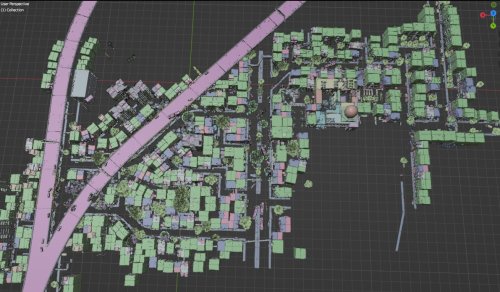 Tools for Battlefield 6. Currently supports dumping the game, export models/maps. Usage is similar to previous tools for frostbite engine. toc_bf6.exe - dump tool Change .ini file parameters: - game path - dump path - selection to dump "ebx", "res", "chunks" or "all" Then drop any .toc file onto .exe to dump assets. Or run from command line with 1 parameter - toc file name. Fb_bf6_mesh.exe - model tool Takes .MeshSet as parameter. ske_soldier_3p.ebx - main universal skeleton for soldiers. Must be in the same folder. If you need another skeleton, use its name as 2nd parameter. Or rename it to ske_soldier_3p.ebx. Tool will try to find chunks automatically. If not, it gives error message with chunk name. Map export 1. Create database Run fb_maps_bf6_db.exe tool once, it will scan whole dump for meshsets and blueprints, so later maps can be converted fast, without the need to go into whole tree of assets. This will take a few minutes. After that, 2 files will be created: bp.db & meshnames.txt, which need to stay in the same folder with EXE for main tool to work. 2. Export maps Use fb_maps_bf6.exe (main map tool) to convert maps. Drop any EBX on it, use in command line with 1 parameter, or create a batch. 3. Terrain export Main terrain data is in .TerrainStreamingTree files for each level. For some levels, these files are small, which means the actual data is in chunks. Sometimes data is in the file itself, in this case it may be big, about 50mb in size. Drop .TerrainStreamingTree on fb_terrain_bf6.exe or use command line.16 points
 -
15 pointsGod of War Ragnarok tool is in progress. Allows to export characters with bones/weights. It will be posted here after some testing 😉 The tool currently relies on Hitmanhimself's tool, so assets must be first exported with his tool, and then converted.15 points
-
13 points
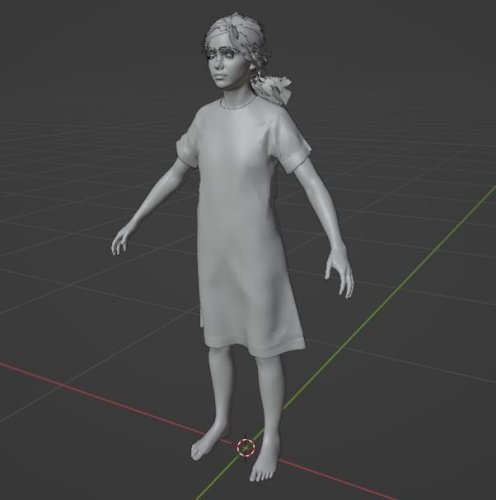 My old tool for TLOU2 PS4 fixed to work with PC files. Unpack .psarc files with UnPSARC_v2.7, and then you can use any .PAK file with the tool. Use command line, or just drop .PAK file onto the .exe Work same as old tool, described here: https://web.archive.org/web/20230819184855/https://forum.xentax.com/viewtopic.php?t=22580 After extraction, model and skeleton are in separate files. So they must be manually combined to work together. SMD model & skeleton can be just imported separately and then connected in blender. For ascii it will not work, so you have to open model in text editor, remove first line (0), which is bone number, and copy-paste skeleton there instead of that zero. So far tested on models, textures, maps - all looks fine. Animations are probably wrong, i can look into that later.13 points
 -
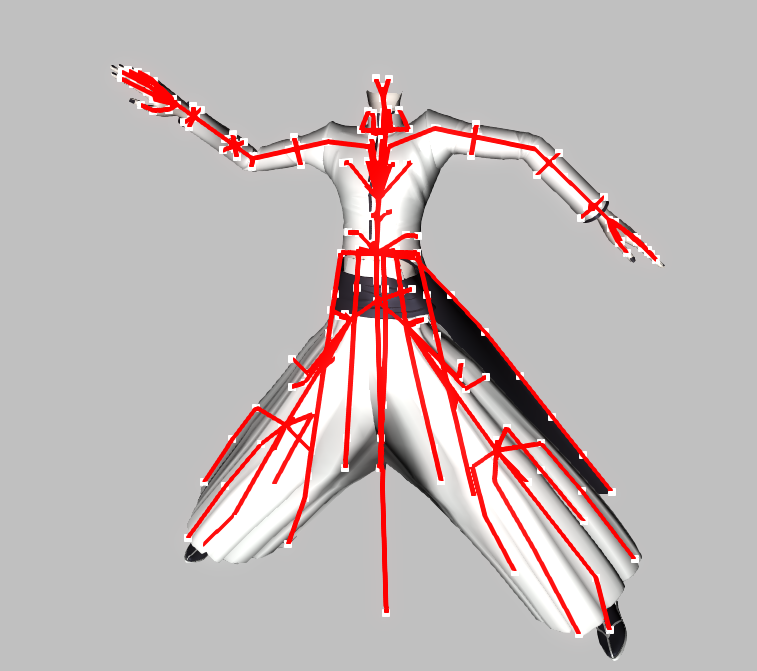
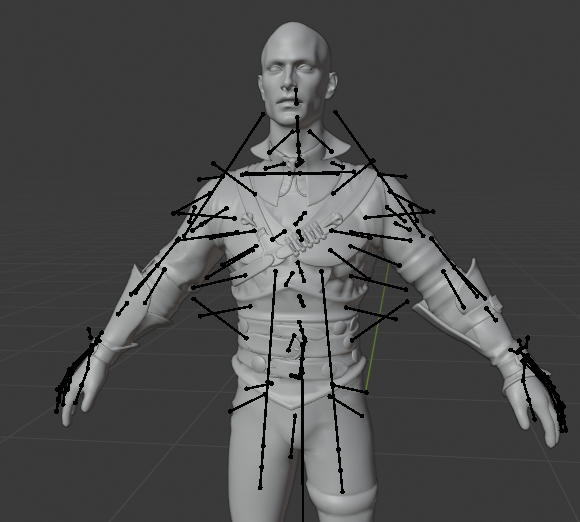
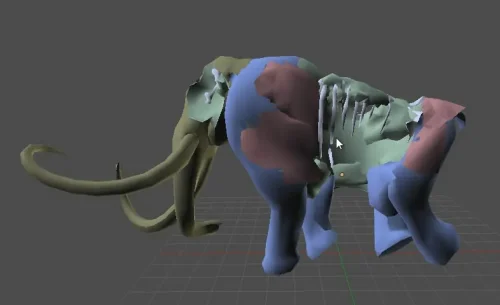
13 pointsI'm still looking into the bones, trying to get them working correctly. The ones that don't work correctly yet are the models with over 256 bones, such as the one below. The vertex data only uses bytes for the indices, so it has to remap the bones into smaller groups of 0-255. They could have just used Shorts for the indices and it would have been no problem. Had a bit of success with some bones being remapped correctly, but others still not. It seems like some bones maybe aren't needed, or are used for something else. This is pl036 with some bones being moved correctly.
 13 points
 -
13 points
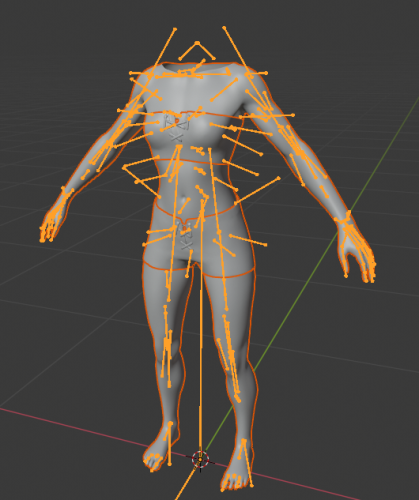 Dragon Age The Veilguard tools. Work same as my previous frostbite tools. toc_dav.exe - dump tool Change .ini file parameters: - game path - dump path - selection to dump "ebx", "res", "chunks" or "all" Place oo2core_9_win64.dll from the game next to the tool. Then drop any .toc file onto .exe to dump assets. Or run from command line with 1 parameter - toc file name. Main file is default.toc, voice files are inside subfolders - en.toc and other languages Fb_dav.exe - model tool Takes .MeshSet as parameter. rgz_skeleton.ebx - main universal skeleton for all humanoids. Must be in the same folder. Game has 2 skeletons with this name, you need the one from "techanim" folder, which is bigger. If you need another skeleton, use its name as 2nd parameter. Or rename it to rgz_skeleton.ebx. Tool will try to find chunks automatically. If not, it gives error message with chunk name. Set of smd files - to fix distorted faces They are 2-frame animation files to transform head model to its normal state. fb_strands.exe & fb_strands_c.exe - hair tools Each hair model has .StrandHairResource and .StrandHairSet files, and also a small EBX file (about 5kb in size) next to it which has its parameters, including the initial position. This EBX file is usually called the same, with _strand_model.ebx or _model.ebx in the end of its name. Tool takes 2 or 3 parameters: fb_strands.exe <StrandHairResource> <StrandHairSet> [EBX] First 2 parameters are required, but if you add EBX in the end, it will try to place static part correctly. fb_strands_c.exe is experimental version for curly strands. It looks more or less fine, but not 100% proper, so i'm calling this tool experimental. Later it may be improved. Hairs will be exported as 2 OBJ files (one for flowing, one for static part) with curves, which can be later converted to meshes or particle systems in blender or other editor. OBJ files will have hair groups marked, which can be useful for rendering.13 points
 -
12 pointsHere is the archive of all my source code as of July 2026. (with the exception of very few files related to asset encryption) You can use my sources for any free, non-commercial projects. However, as has always been the case, I'm against commercial, paid usage or paywalls. This includes selling tools, mods or models. There are also around 40 earlier projects related to audio/sfx/music extraction. Those will be published a bit later.12 points
-
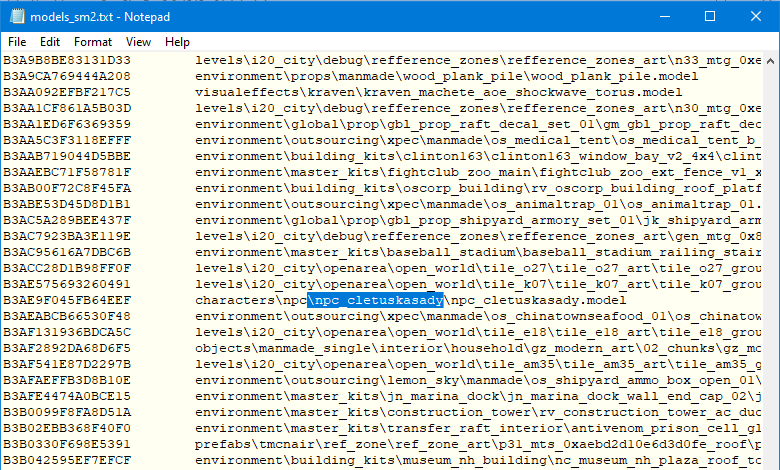
12 pointsI'm gonna share my findings about spiderman 2, 3 and wolverine assets here. So far I made a few first tools for archives. I have a list of assets present and now comparing them. Here some examples: Heres what i found so far: Spiderman 2 (official release v1.05) has about 400k assets. And its the first game of theirs with no names in archive. But luckily we have a list of names in ... Spiderman 3 early build, which also has about 400k assets, with names, but a little different. It has about 300 new assets, and missing about 3000 old ones. So it looks like for some first tests of SM3 they removed most of the map or something, and started adding some new models and map parts. I can see it comparing the lists. Wolverine has only 39k assets built, as everybody know probably, its just a little part of new game for tests. Now i'm gonna dump some models and make tools to convert them. Progress details on discord.
 12 points
 -
12 points
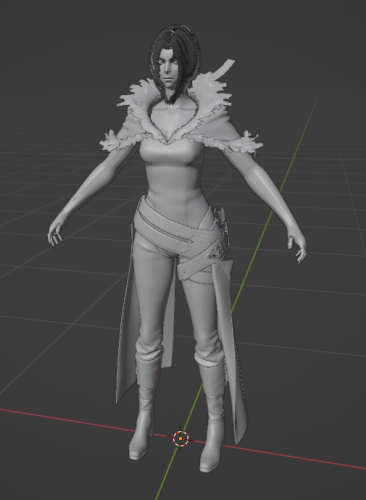 Tool for FFXVI (Final Fantasy 16) models. So far it must support all (or almost all) models from "chara" folder. Static map parts may also work. Did not test much of the others. Requires 1 or 2 parameters. Usage: FF16.exe <mdl> <pac> 2nd parameter is needed for skeletons. If you don't provide .PAC file, model will be exported as static mesh. The PAC file for character group is in its corresponding "pack" folder.12 points
 -
11 pointsI'm going to do tools for it, and release it here on reshax. I plan to support characters and maps, like it was before with FF7 remake.11 points
-
11 points
-
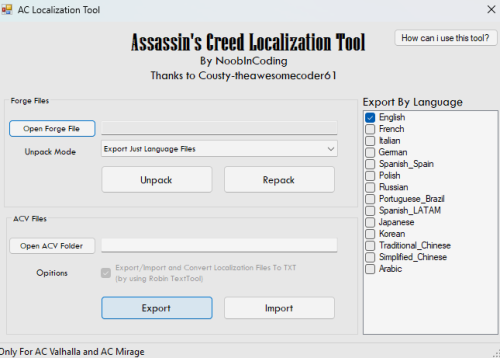 Localization tools for game. Currently NOT WORKING with AC: Shadows Made by NoobInCoding, thx P.S using this as sample for tutorial as well..10 points
 -
10 pointsGood news. Issues with missing objects and incorrect normals were fixed. Now tool is really close to release.10 points
-
10 points
-
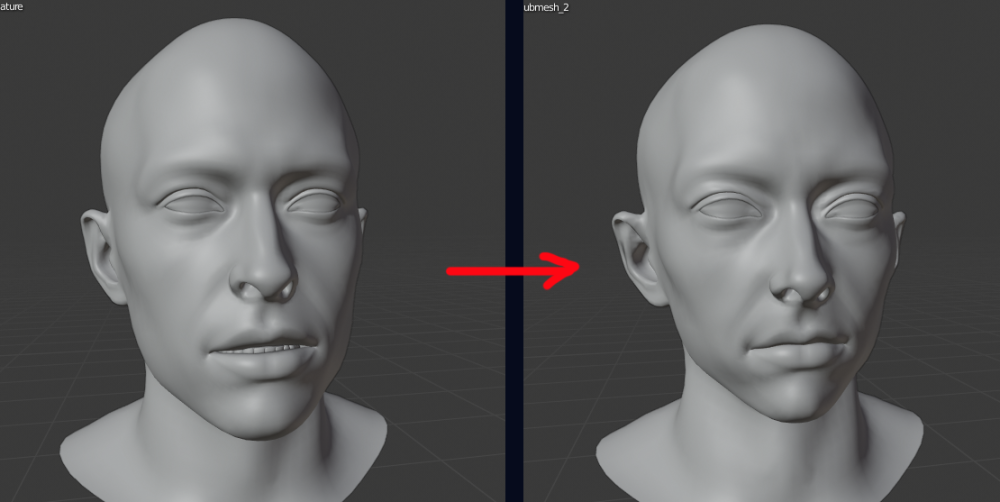
9 pointsI'm working on a set of tools for Dragon Age Veilguard. So far, i have dump tool to extract all files, all models can be converted. Also i have fixed the usual frostbite distorted faces. Now checking if something needs to be done with unified skeleton or textures, and then tools will be published here.
 9 points
 -
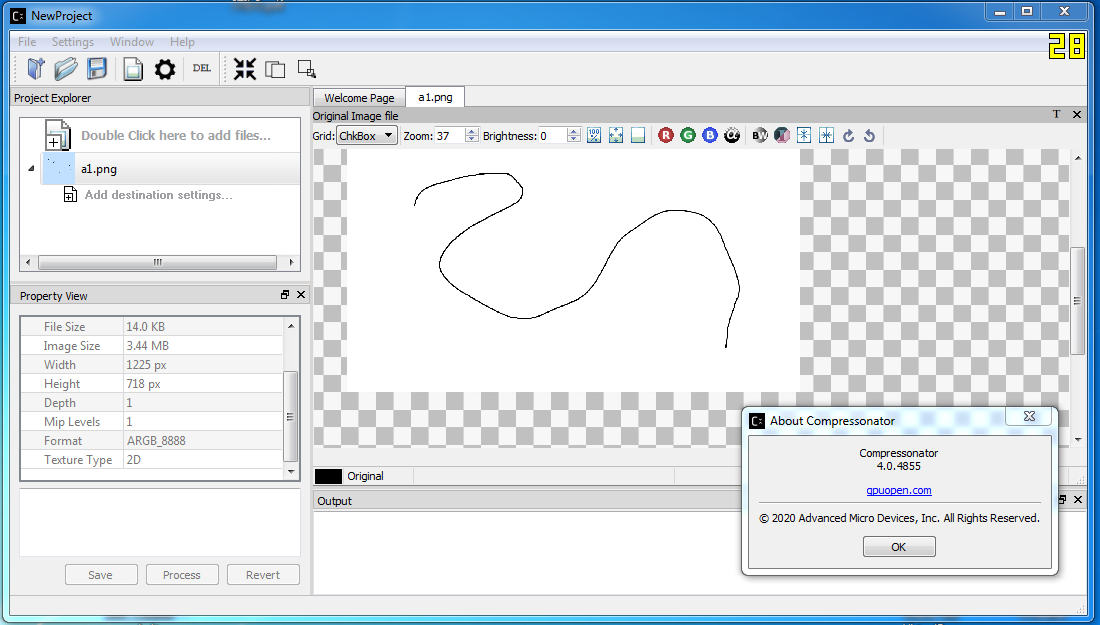
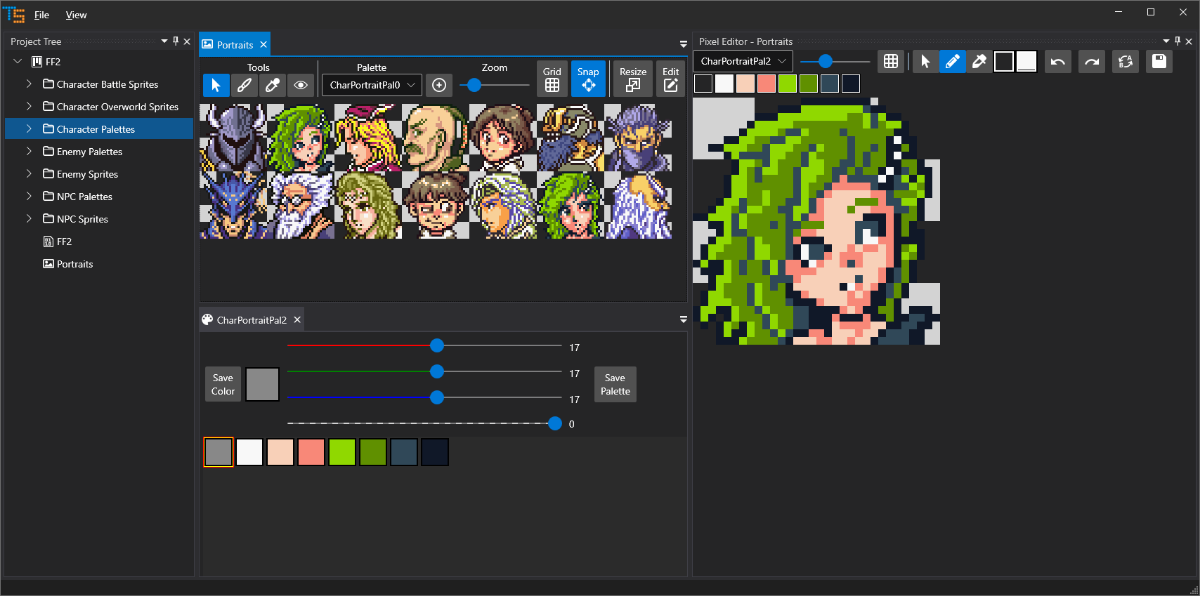
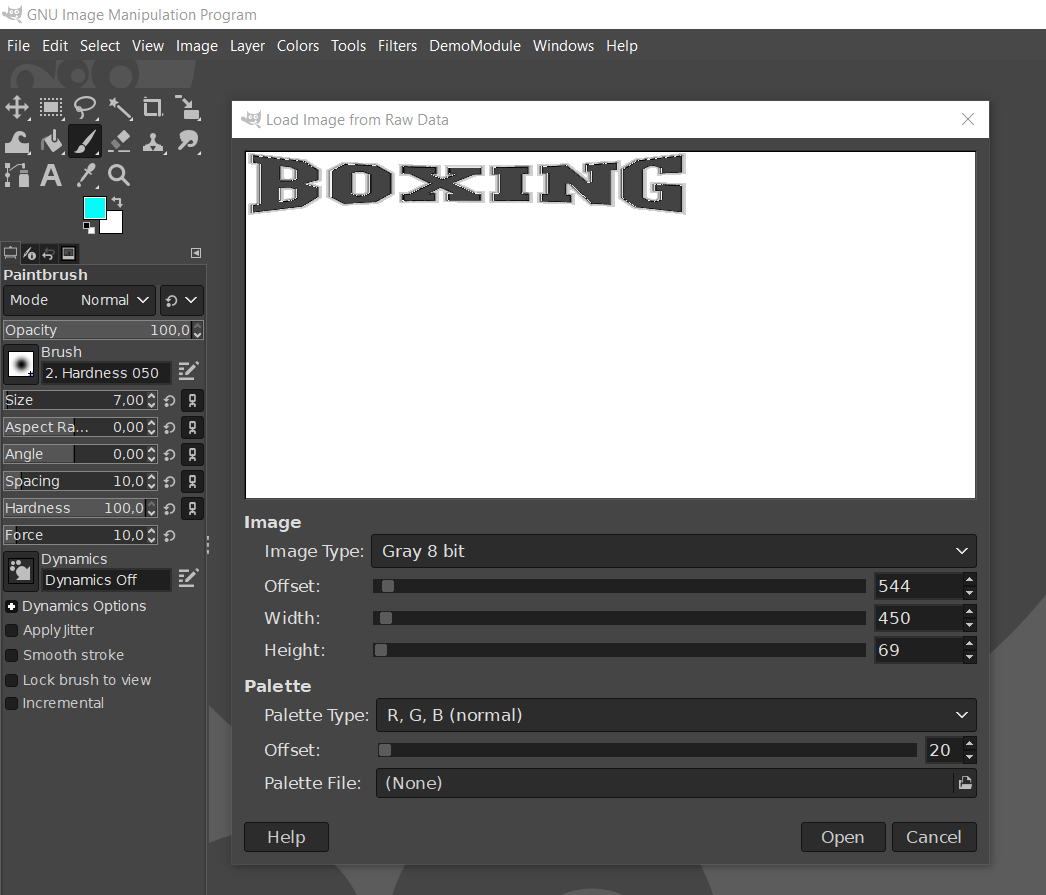
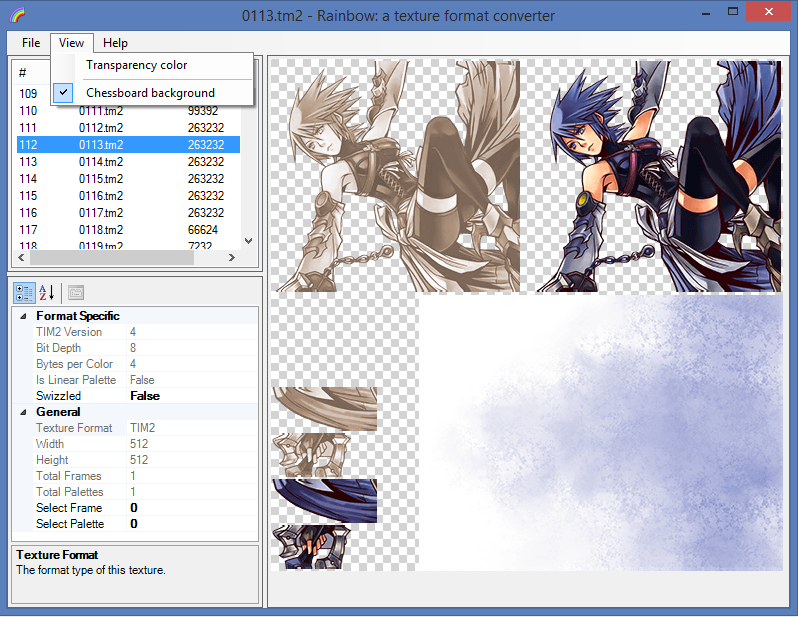
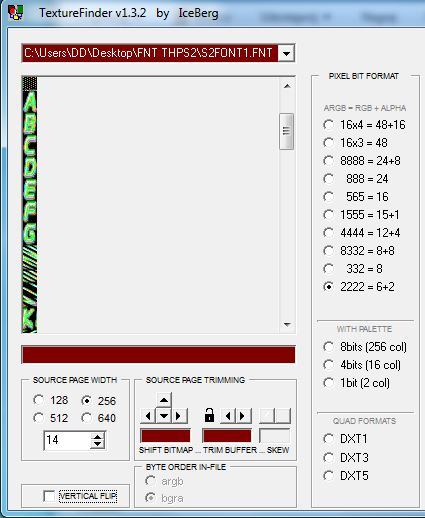
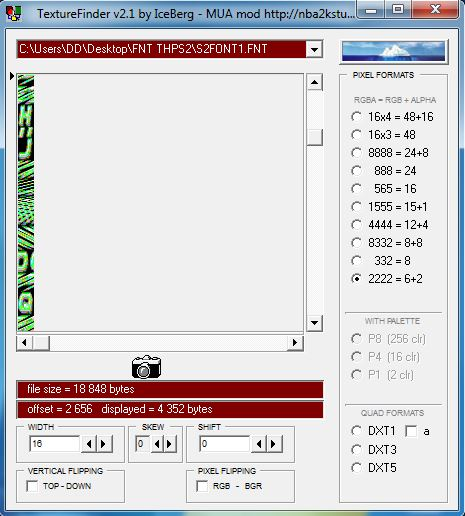
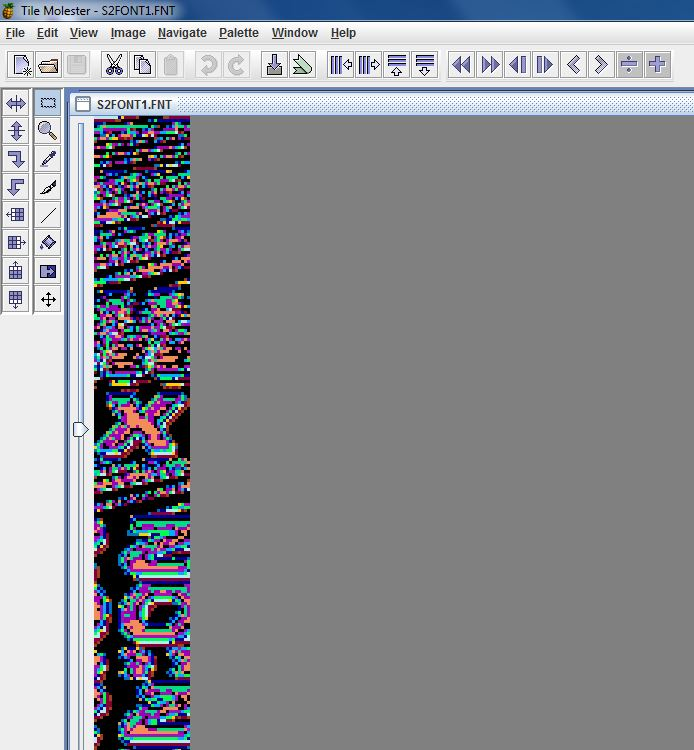
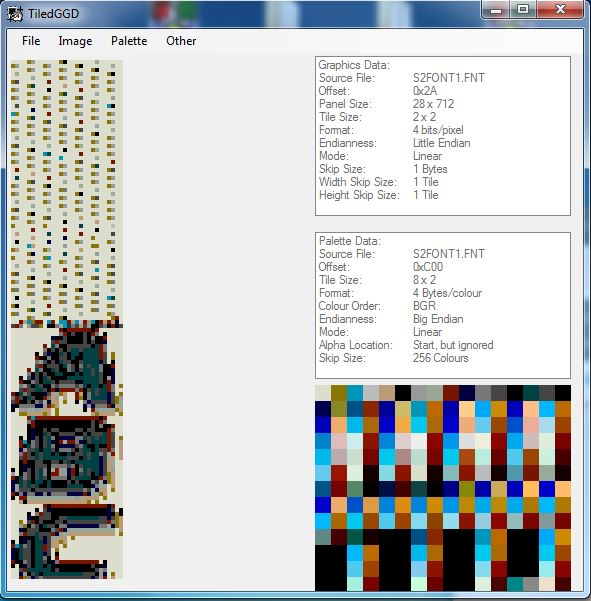
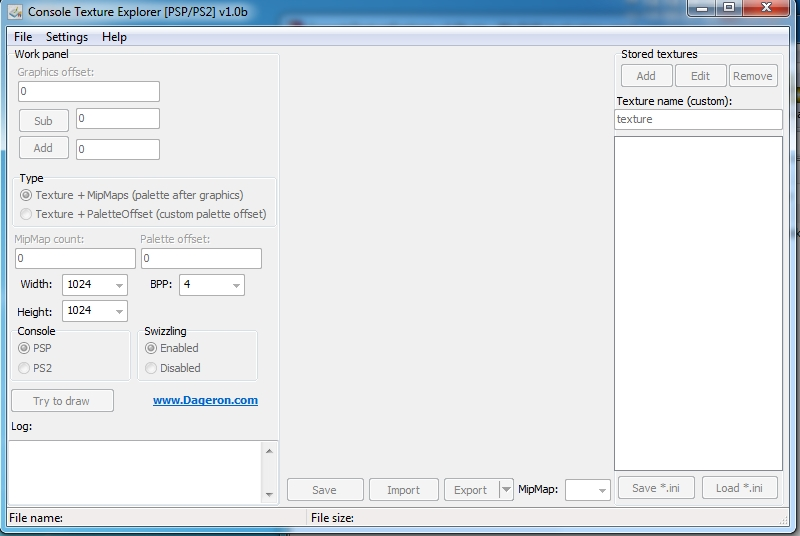
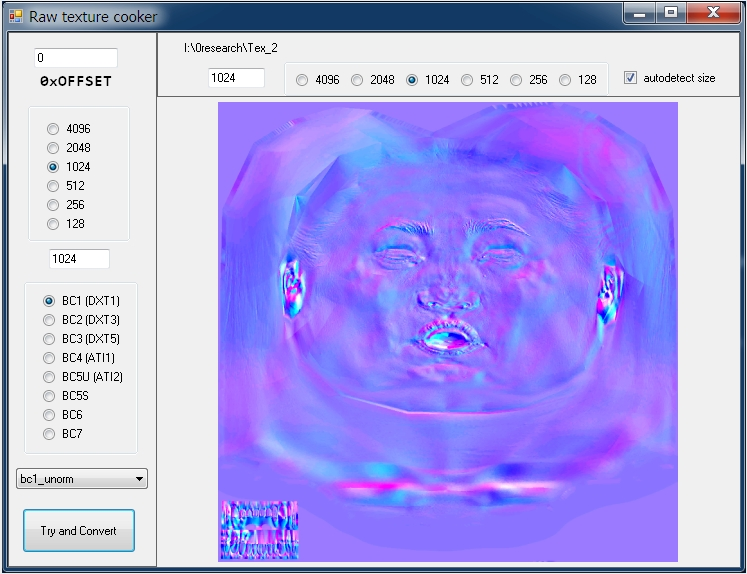
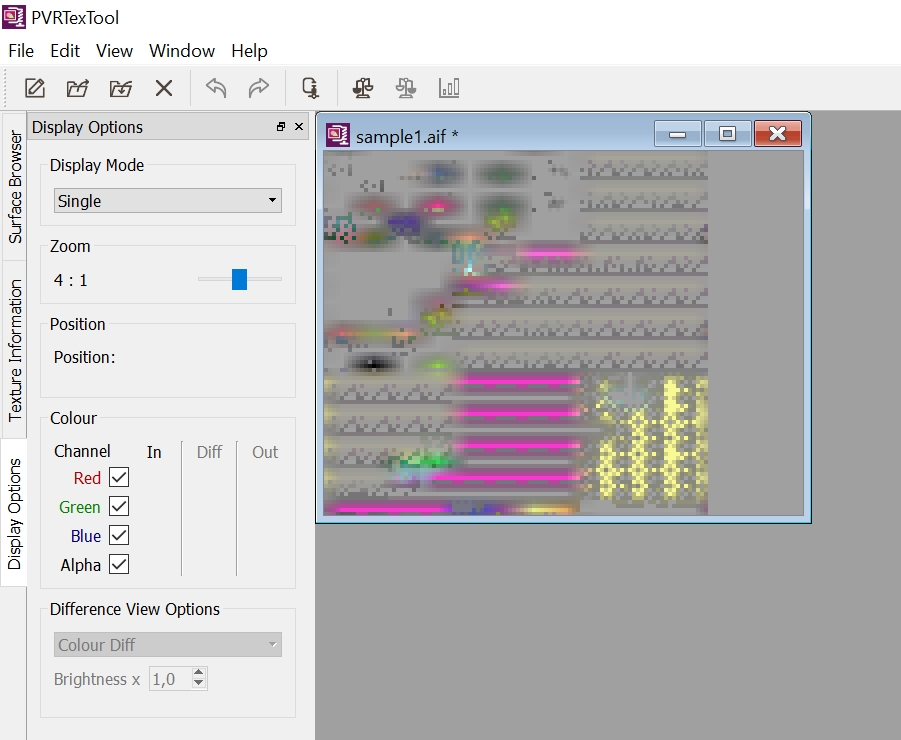
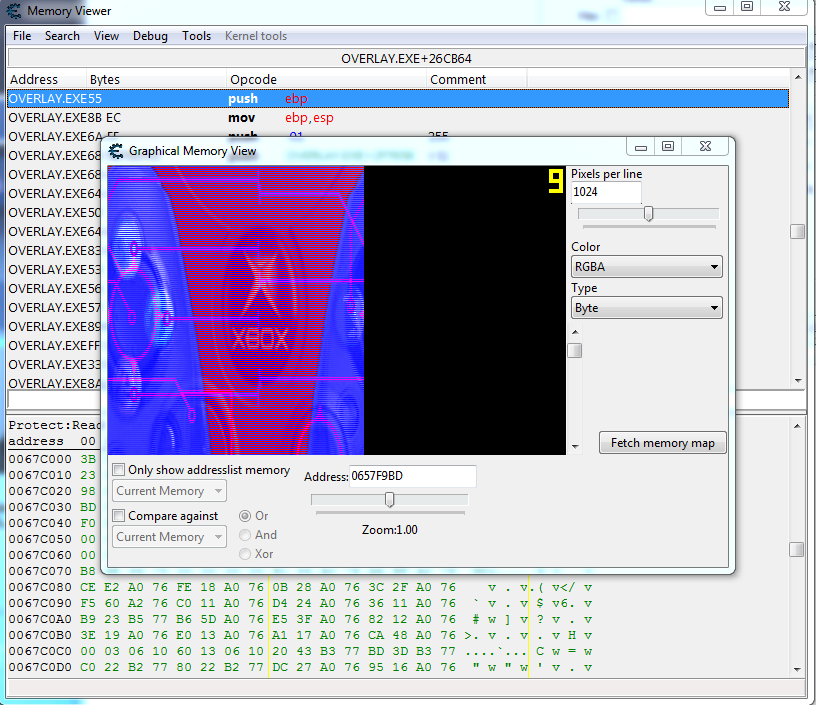
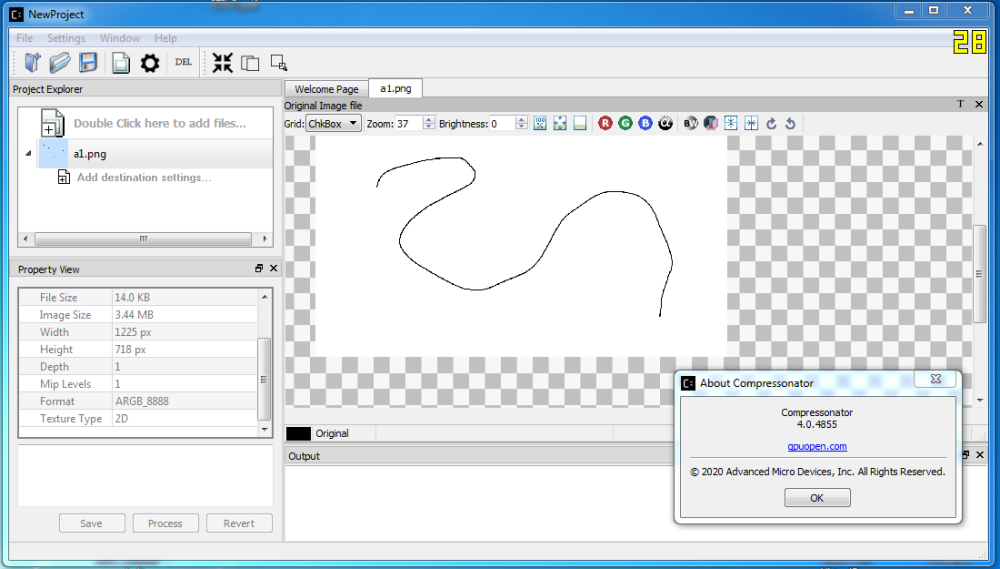
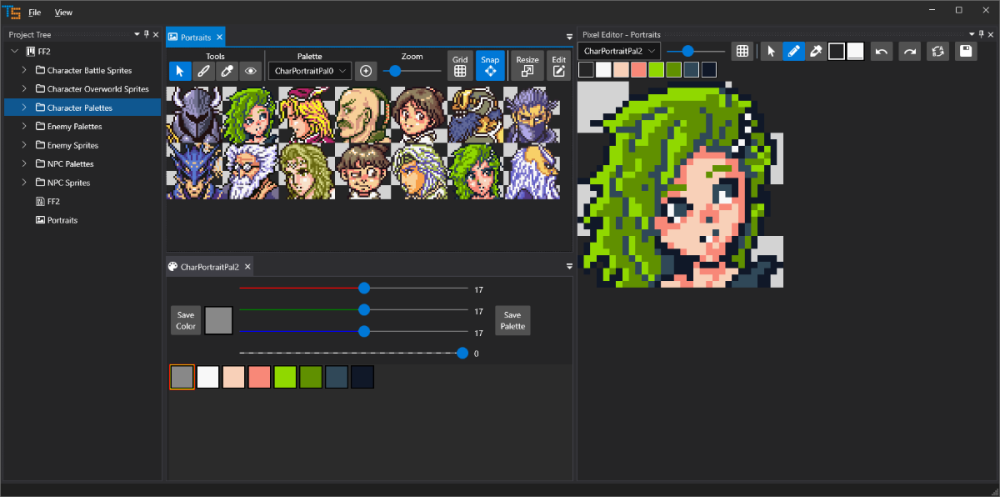
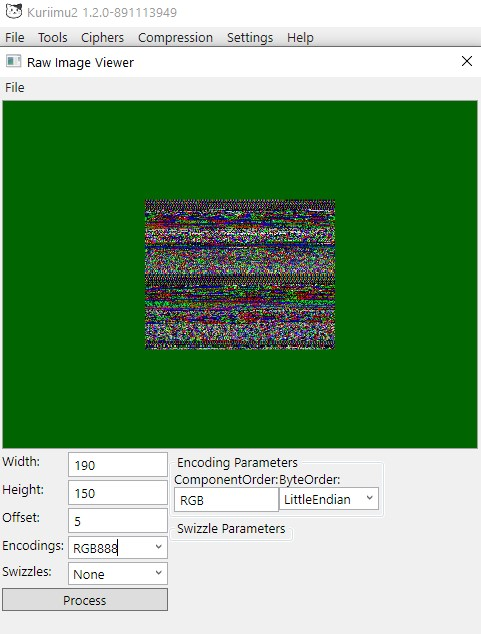
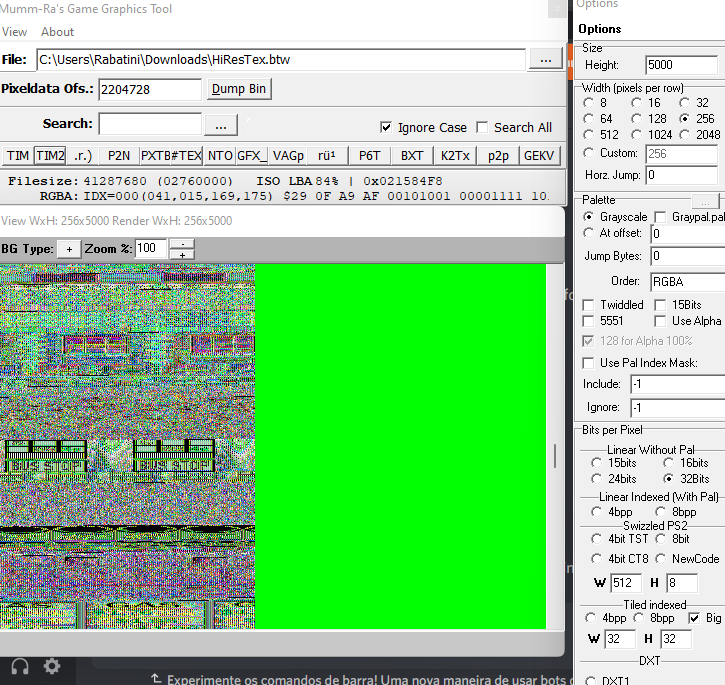
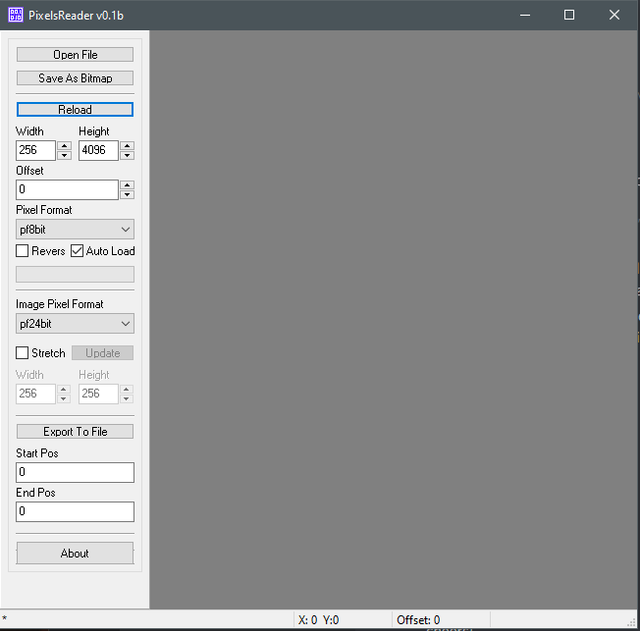
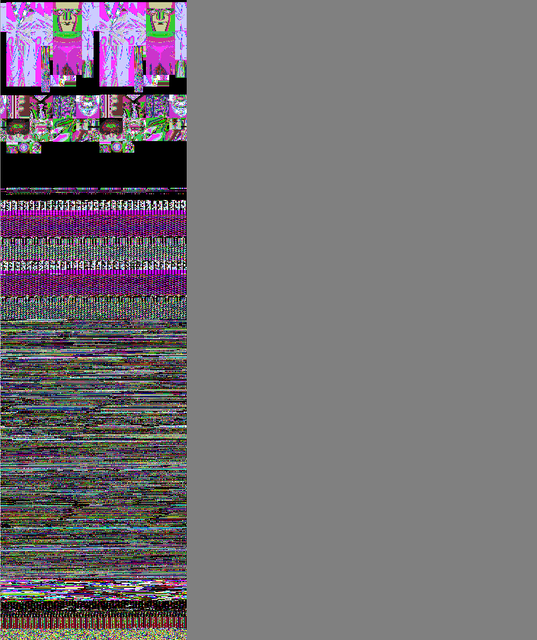
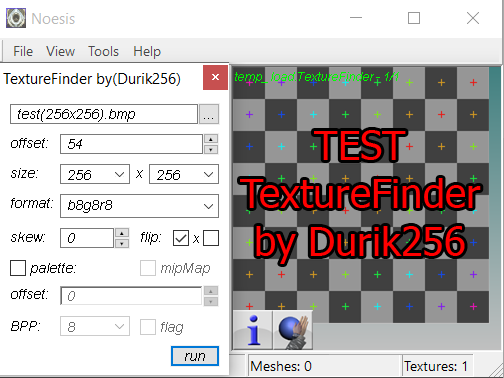
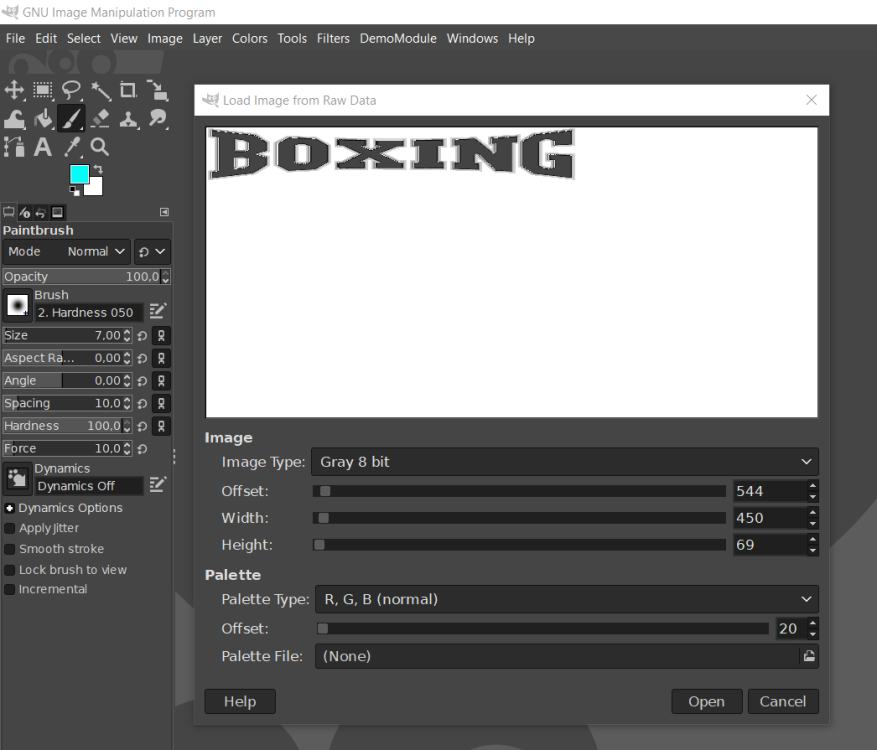
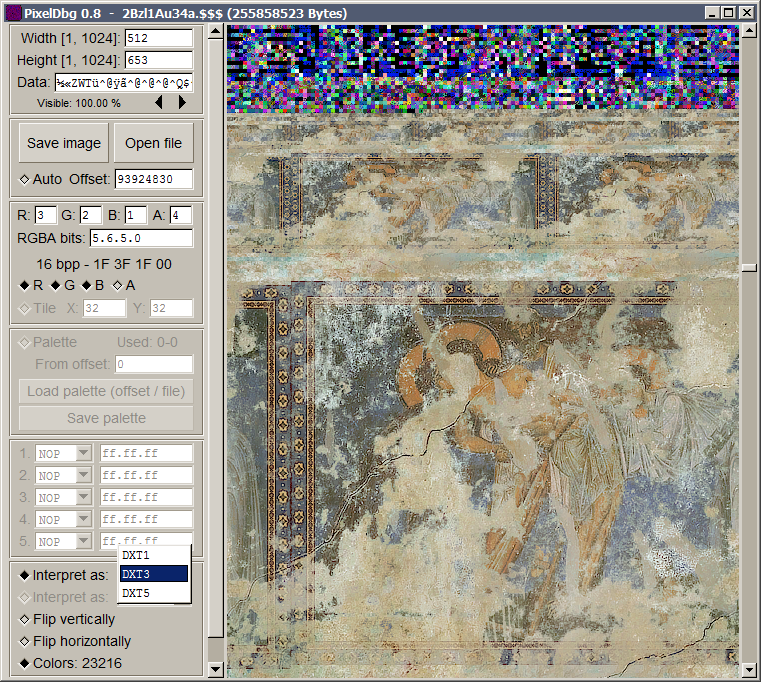
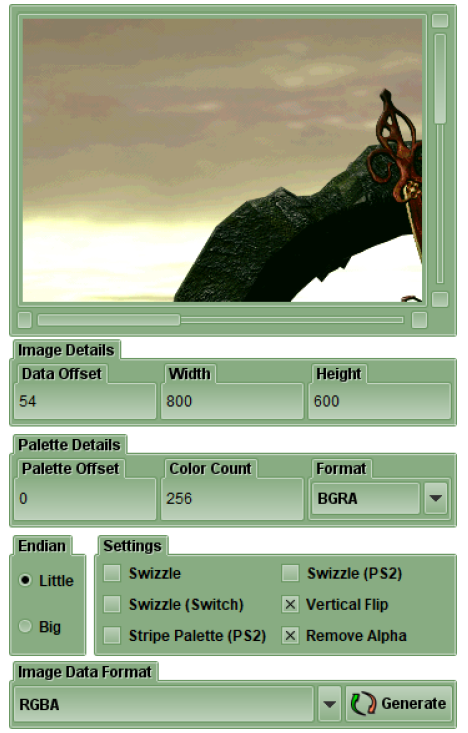
9 pointsThis is an archive of the useful list originally from https://forum.xentax.com/viewtopic.php?t=15540, which seemed a fitting first topic for graphic file formats. Some links are broken because they pointed to internal downloads on Xentax :'(, but most work :). ------------------------------------------------------------------------------------------------------------------------ Post by ikskoks » Fri Nov 25, 2016 2:13 pm TextureFinder 1.3.2 Designed to find textures inside any uncompressed files. Any size, any pixel bit format, any binary file. It only requires that the file be uncompressed. This tool is intended to be used by researchers and developers with a good understanding of bitmap formats. VERSION 1.3.2 is the last one of this first series. Formats implemented so far: TRUE COLOUR (RGBA) FORMATS : 64bits 16x4 48bits 16x3 32bits 8888 24bits 888 16bits 565 15+1bits 1555 12+4bits 4444 08+8bits 8332 08bits 332 06+2bits 2222 PALETTE FORMATS : P8 256 colours P4 16 colours P1 2 colours QUAD FORMATS (alpha channel implemented only in series 2) : DXT1 DXT3 DXT5 TextureFinder 2.1 Newer and better version of TextureFinder. Tile Molester 0.16 Tile Molester, or TM for short, is a program that facilitates the viewing and editing of raw graphics data; that is, graphics contained in arbitrary binary files, where one usually doesn't have initial knowledge about the location and/or format of the graphics. The main area of application thus far has been videogame console binaries. In most cases, these files contain a large variety of data, not just graphics -- sound data and actual game code are two examples. Collections of data in one and the same file may be interspersed in any conceivable fashion, subject to hardware/software-constraints of the intended runtime-environment as well as the decisions made by the producers of the binary (the developers). TM is a kind of visual explorer of such files, in that it allows the file contents to be interpreted and displayed in a multitude of ways. By perusing the file and tweaking the settings of the renderer, the binary data that corresponds to graphics may be made accessible in the way they are intended, and edited to the satisfaction of the user. TiledGGD 2.0.3.0 A generic graphics dumping tool, based on the elusive program GGD TiledGGD - basically it’s GGD (General Graphical Dump tool), with some extra features: Currently working (extra) features: * Support for tiled graphics (tiles of any size) and palettes (tile sizes are restricted, because they need to fit a 16*16 grid) * Copy visible graphics and palette directly to clipboard * ‘Go To Offset’ functionality * Toggle Endianness of graphics and palette separately * Save the entire graphics * Built-in NCGR/NCBR and NCLR support (I’m not using all the data from the files, so there are most likely still some bugs) * Lua plugin support DOWNLOAD TOOLS If you know any other useful programs to search for graphics in files, you can share here. 🙂 ------------------------------------------------------------------------------------------------------------------------ Post by ikskoks » Sun Jun 18, 2017 3:39 am Rainbow is a tool intended to convert different graphics formats from video games assets to and from user editable images (like png). It currently supports almost every variant of the TIM2 format. The main difference with other great tools like Tile Molester and Crystal Tile 2 is to provide direct support to proprietary graphics formats found in "new generation" consoles, like PS2, PSP, Wii, etc., instead of dealing with just the raw image data. Features The underlying image library has almost complete support to TIM2 texture files usually found in PS2 and PSP games. The app supports multi-layer, multi-clut, swizzled (PSP)/unswizzled TIM2 images with both linear, interleaved palettes, and segments headers eventually extended with custom user data (usually used by programmers). Can open textures in any format supported by the underlying image library. Can open whole folders in search of supported texture formats. All known texture files are then displayed in a list. Can export and import textures in suitable image formats for editing (like png). Any additional information specific to the texture is preserved when exporting/importing (like the TIM2 header data), in order to have a one-to-one correspondence with the original texture. Customizable background color for transparent and semi-transparent images with chessboard like pattern. Finally, Rainbow supports parameters via command line: the first parameter is the name of a texture you would like to open. DOWNLOAD Console Texture Explorer (PSP/PS2) is an application that allows working with PSP and PS2 textures. It helps to minimize manual work during texture resources manual scanning and graphics data research in raw archives. Version: 1.0b Designed and made by: Dageron Year: 2012 ====== Supported platforms: PSP and PS2 Supported formats: any texture dictionaries with 4bpp/8bpp graphics data DOWNLOAD ------------------------------------------------------------------------------------------------------------------------ Post by ikskoks » Sun Jun 03, 2018 7:04 am Raw texture previewer/converter Download here: viewtopic.php?f=18&t=16461 ------------------------------------------------------------------------------------------------------------------------ Post by ikskoks » Mon Jul 16, 2018 2:28 am PVRTexTool Download: https://community.imgtec.com/downloads/windows-installer-powervr-tools-and-sdk-2018-r1/ ------------------------------------------------------------------------------------------------------------------------ Post by ikskoks » Mon Aug 10, 2020 7:29 am Cheat Engine - Graphical Memory View CHEAT ENGINE DOWNLOAD ------------------------------------------------------------------------------------------------------------------------ Post by ikskoks » Tue Sep 08, 2020 11:52 am AMD Compressonator --> https://gpuopen.com/compressonator/ https://github.com/GPUOpen-Tools/compressonator ------------------------------------------------------------------------------------------------------------------------ Post by ikskoks » Wed Oct 21, 2020 11:35 am Some new tools are listed here --> https://tcrf.net/Help:Contents/Finding_Content/Finding_graphics ------------------------------------------------------------------------------------------------------------------------ Post by ikskoks » Tue Dec 15, 2020 6:01 am RAW pixels viewer This application allows you analyze raw image data, you can display memory dumps of frame buffers, video buffers and uncompressed video files. Play with image parameters below to explore world of colors. https://imgur.com/a/ZJQtO8B http://rawpixels.net/ ------------------------------------------------------------------------------------------------------------------------ Post by ikskoks » Thu May 20, 2021 10:32 am TileShop and ImageMagitek TileShop is a WPF application for Windows that implements ImageMagitek and allows end-users to manage specialized graphics in a modern GUI environment. ImageMagitek is an internal .NET library written in C# to view, edit, and organize common and complex retro videogame system graphics. Emphasis is given to the features most valuable to the common, cumbersome tasks when encountering graphics embedded within binaries without any distinguishable headers or identifiers. Exporting and importing is supported to allow advanced editing features to be performed in third-party image editors that operate on standard PNG. https://github.com/stevemonaco/ImageMagitek ------------------------------------------------------------------------------------------------------------------------ Post by th3ru » Sat Jun 05, 2021 11:33 am Raw Image Viewer module of Kuriimu2. + live preview as you change parameters. - no drag&drop, to be launched from K2, extracts only to png. https://github.com/FanTranslatorsInternational/Kuriimu2 ------------------------------------------------------------------------------------------------------------------------ Post by ikskoks » Thu Nov 04, 2021 12:25 pm Mumm-Ra's Game Graphics Tool Download: old version -> https://drive.google.com/file/d/1ZeRQcU-cqOO5gdRGV_kgvsrq_jBoCFgH/view?usp=sharing version 96 -> https://drive.google.com/file/d/1kw1YVDzPATMCS5fZYDTiPwosqhGjVpmO/view version 100 --> https://drive.google.com/file/d/1mc8gGTt_O7HpcthqXQfEc30TgV_2f4ze/view ------------------------------------------------------------------------------------------------------------------------ Post by Sharppy » Sun Nov 07, 2021 8:51 am Pixel Reader by Leo2236 Open any file to view it in pixel format Creator Site http://lgt.createaforum.com/index.php ------------------------------------------------------------------------------------------------------------------------ Post by ikskoks » Fri Dec 23, 2022 4:23 am TextureFinder by Durik256 (Noesis) [updated 2023-11-26] Download: https://github.com/Durik256/Noesis-Plugins/blob/master/tool_TextureFinder.py Original usage instructions: https://web.archive.org/web/20231012104059/https://forum.xentax.com/viewtopic.php?t=26113 ------------------------------------------------------------------------------------------------------------------------ Post by ikskoks » Tue Dec 27, 2022 6:33 am GIMP - Load Image from Raw Data How to use this functionality: 1. Download GIMP 2.10 2. Change your file's extension to *.data 3. Open GIMP 4. Go to File > Open in GIMP 5. Load your *.data file in GIMP 6. Click "Open" in the new window. ------------------------------------------------------------------------------------------------------------------------ Post by th3ru » Mon Mar 06, 2023 7:47 am PixelDbg - view any type of file as image data, using a number of different formats. Downloads: https://sourceforge.net/projects/pixeldbg/ (source + binaries for Windows and Linux) (originally found on tcrf | not tested personally) ------------------------------------------------------------------------------------------------------------------------ Post by ikskoks » Tue Oct 24, 2023 4:16 am Game Extractor
 9 points
 -
9 pointsFrom further investigation, it seems that some meshes use up to 8 bone weights/indices, where others only use 4. It also looks like they're split into 2 groups of 4 in the vertex data - i.e 4 weights/4 indices/2nd set of 4 weights/2nd set of 4 indices. So I'll need to redo the way bones are processed to see if that fixes it.9 points
-
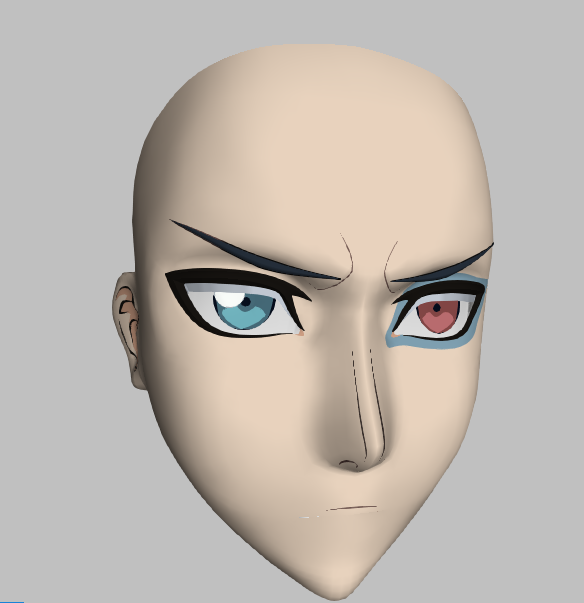
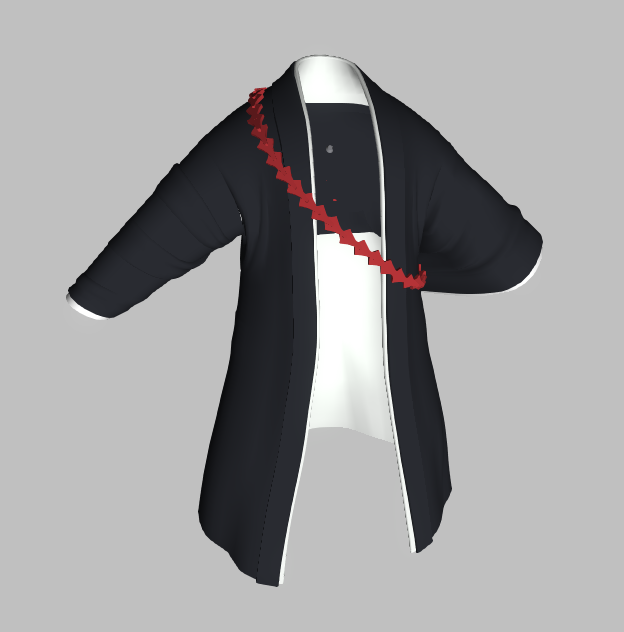
9 pointsI'm looking at the textures/materials now, trying to allocate them properly. Just a few tests so far:
 9 points
 -
9 points
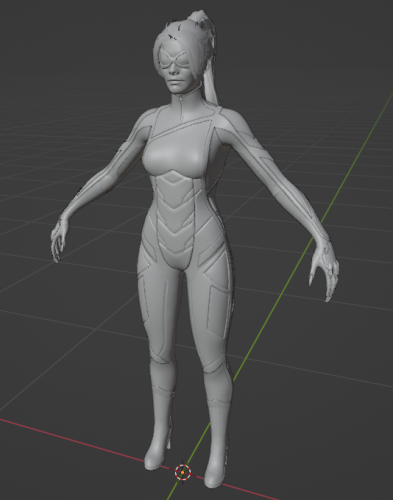 Spiderman 2 (PS5) tool. Models & textures (most of them) supported now Correct INI file for the folder where you have game data files. Be sure that folder name has 'PS5' in its name. Then run some of these commands: 1. spiderman2 99807473A3981A8D - will extract that asset 2. spiderman2 99807473A3981A8D c:\spider\iw - will extract asset into folder with name you specified 3. spiderman2 list.txt - will extract ALL assets in list asset lists you can find in discord you can also edit "list.txt" to give assets any names/folders/drives you want tool will work based on HASHES (not names), names are given for reference9 points
 -
Here you can find my tutorial for Horizon Forbidden West. HUGE thanks to daemon for helping me with all this and a few others on discord. Finally we have something that can work efficently. All the tools are provided in the links. Daemons tool can be found on his page in Horizon. Have any questions feel free to ask here on on discord. Tutorial Tool Usage https://sites.google.com/view/sharp-design/tutorials/horizon-forbidden-west-tutorial HFW Animation Tools https://drive.google.com/file/d/1-c4_OEFfKCLzqyqMYME0CRZBlh9Hjiye/view?usp=drive_link CMD context reg https://drive.google.com/file/d/1lrS7KsaNDha_QeajP2XvS5TPImdhbANW/view?usp=drive_link ASCII blender importer https://drive.google.com/file/d/13an1_Ct65NIRbRU436ZkIeeEkLSNpulU/view?usp=drive_link9 points
-
8 points*(test first topic)(orig topic on Xentax) what worked for me: CASCExplorer.exe CASCExplorer.exe File>Open Online Strorage>Diablo IV (Beta) after: select CDN Build> 41428_Win64Client_0_9_0_b wait "Loading" in Explorer select all(or those that are needed) files in: -"Root(Read only)>base>meta>Apperarance" -"Root(Read only)>base>payload>Apperarance" click LMB>Extract> yourFolder After extraction, the folder structure will be preserved. meta file and data file have the same names I made a converter AppToOBJ.exe (I used my 3D library written in pure C#), It opens a meta file and looks for a data file in the specified folder "path with dataAPP" with the same name as the meta file, if this folder is not specified it looks for a data file near the meta file with the same name but as "*_data.app" *(This is a test application, tested on random models, I do not guarantee that all models will work. There will be no further work on this application.) AppToOBJ.exe Zombie.zip
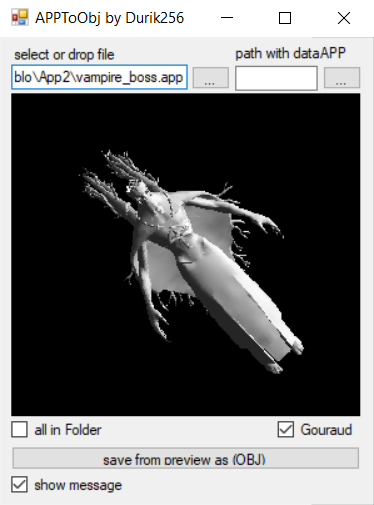 8 points
 -
8 points
 Final Fantasy VII Rebirth tool Exports static and skeletal characters, maps (including nanites). In addition to all DLLs provided here, it requires global.ucas file from the game, it must be in the same folder as .EXE. Usage is similar to previous FF7remake tool. See below. Main difference is that nanite maps (using nanites) are exported in DMF format (download blender plugin for it here). Tool usage: You can use the tool to convert individual assets, or all assets in a folder. 1. To convert one asset, drop asset file onto the tool, or run the tool from command line with asset filename as parameter. If asset file contains a texture, it will create "texture.db" file with information for later use in map extraction. If asset file contains static or skeletal mesh, in will be exported to ASCII. Raw data will also be saved in "staticmesh.raw" & "skeletalmesh.raw" folders for later use in map extraction. If asset file contains a material, it will export material info in a text file, and create "material.db" file with information for later use in map extraction. If "material.db" file already exists next to the tool, it will be updated with newly found materials. If asset file contains a blueprint, it will create "blueprint.db" file with information for later use in map extraction. If "blueprint.db" file already exists next to the tool, it will be updated with newly found blueprints. 2. To convert all assets in a folder, place the tool in that folder and run it. Tool will search that folder and all subfolders for .uasset files and try converting them all. When prompted "are you sure?" you can press "enter" to confirm or Ctrl-C to cancel. 3. To convert maps, drop .umap file onto the tool, or run the tool from command line with umap filename as parameter. Current version will extract static meshes, skeletal meshes, blueprint-generated meshes and nanite "terrain streams" from a map. For map extraction to work, "staticmesh.raw" and "skeletalmesh.raw" folders with previously extracted data must be in the same folder with the tool. If some models will be missing, tool will give messages. If "blueprint.db" file will be next to the tool, it will try and place all models mentioned in blueprints on the map. There's no proper blueprint support, so some models may be placed incorrectly. If "texture.db" file will be next to the tool, it will be used to assign proper material names to nanite parts of a map instead of hashes.8 points
 -
8 points
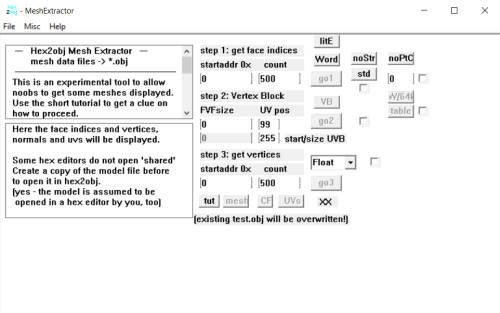 The "Download this file" button links to the old version (which I can't get rid of). Download the appended zip file instead! This tool is meant to take the mesh data from the mesh you want to convert into OBJ (you have to load the model file into the program). You will also have to use a hex editor to find the model's mesh data offsets and counts and then copy them into hex2obj. Depending on these parameters it will convert the hex data into an OBJ file (File/SaveAs mesh) that you can then import into your preferred 3D Program (3DS Max, Blender, Maya, etc) hex2obj_0.25b.zip8 points
 -
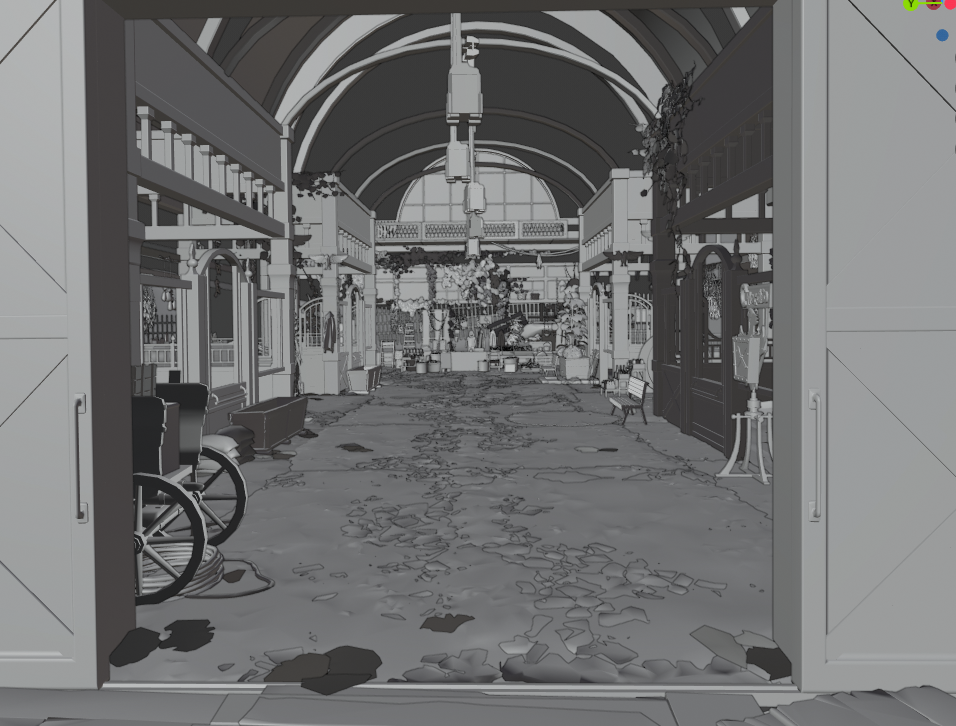
8 pointsIts getting there, I have more objects placed now. But still not all.
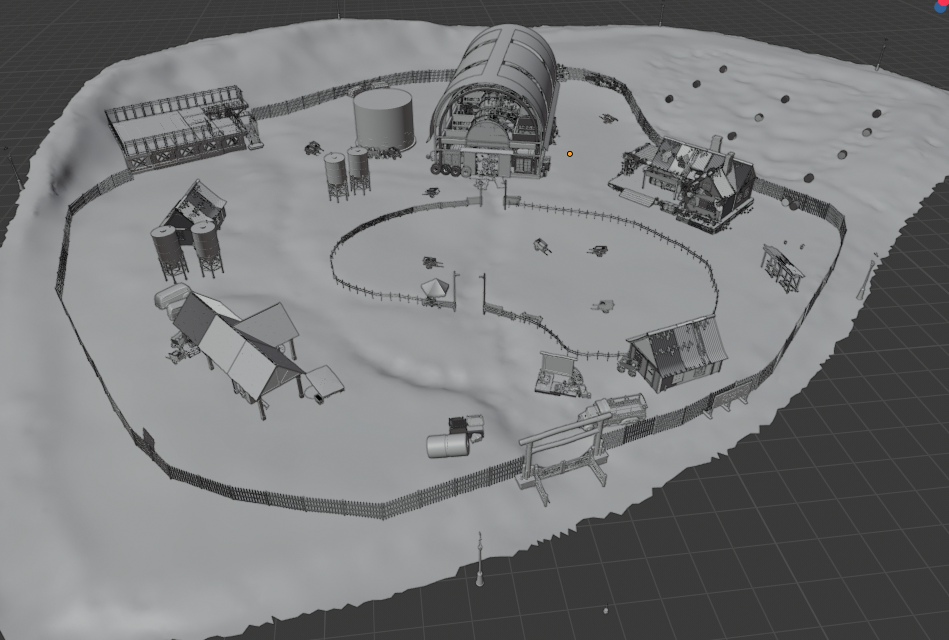
 8 points
 -
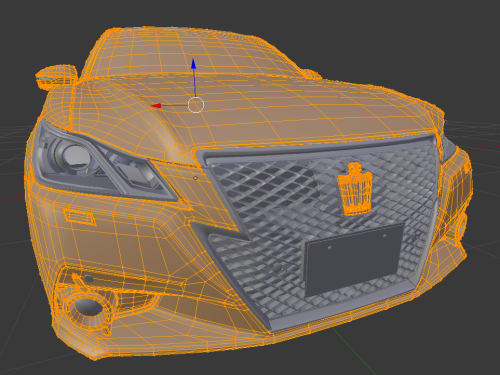 GTS_MDL is the tool for models. Current version extracts static models and textures. Skeletal models also supported, but will be exported static. Car wheels and some other parts will be not in correct positions. This may be corrected with future adding their skeletons and weights. You can convert maps (tracks/courses) with this tool, after you extract the track from PACK file with GTS_Pack tool. IMPORTANT NOTE. The tool extracts the highest LOD of game data. Many car parts are using tesselation. These meshes are marked with "_T" in their name. Thats why they look like they are low detail. But actually those are highest quality meshes. This tech was also used in GT6. Usage: drop model file onto the tool. OBJ & ASCII files will be created. ASCII will have all UV layers. GTS_PACK is the tool to unpack PACK files, which contain tracks. It will hopefully unpack ANY pack from GTS, not just tracks. Thats how it works: Any pack contains a few sections usually 2: SYS and VRAM naturally its data loaded into system and video memory these sections have names after unpacking, you will see all of them in subfolder then you must know that the usual model files are combined data for SYS and VRAM so to make it work, you have to MERGE 2 parts of the PACK into one for example you have world.sys & world.vram merge them (sys first) and then model tool will convert it You can merge files via any tool you have for it, or windows command. For example: copy /b WORLD.SYS + WORLD.VRAM WORLD8 points
 -
8 pointsAsset lists for both PS4 & PS5 versions. Here's how they work: body variants - describe each and every variation of human characters. More than 1000. You can export and combine them to get actual combinations controlled entities - all robots are actially those. Also animals and a few other things. I did not check them all, so some of them are still under question, but all robots are there faces - or heads - self-explanatory outfits - aloy outfits. Hopefully these are all, got them automatically. some may be missing all_assets_ps5 is the main game asset tree partially decoded. It contains useful info about most interesting parts. For example, detailed description of all robots, body variants, and other skeletal meshes For example, if you need a face or outfit, you just use the number from the list. But if you need to get a full robot, you need to search for its code in all_assets_ps5 file to find its model parts, skeletons, helpers, destructibles etc. Note that there's no such thing as complete robot description in the game. Robot is a combination of its "entity", model, and other parts. Some robots use same entity, but a little different model (such as horse and goat). Some use same model, but spawns with different destructible parts. It all can be found in the tree. Same if you need a body combined, search for its code and get codes for all its parts An example spawn setup for a robot: B85 SpawnSetup: Entity ---> 55C 7D Entitycomponent ---> 4E7 D SkinnedModelResource Entitycomponent ---> 55C 43 RagdollComponentResource Entitycomponent ---> B80 3 DestructibilityResource AI context = CONTEXT_ARMADILLO_WALK In this example, setup tells the game to spawn an entity 55C (which is armadillo), with a ragdoll also from package 55C, destructible parts described in B80, and a model from 4E7. Ragdoll - will have physics skeleton. Destructibility resource - will have destructible parts description, or links to where they are. Model will have main skeleton, helpers, and all meshes: 4E7 SkinnedModelResource: Modelpart 4E7 2F Modelpart 4E7 9F Modelpart 4E7 56 .... Modelpart 4E7 6F Modelpart 4E7 1F4 Modelpart 4E7 118 SkeletonHelpers 4E7 11F SkeletonHelpers 4E7 7F SkeletonHelpers 4E7 2BF Skeleton ---> 4E7 0 Here we can see that skeleton, helpers, and all parts are in the same package - 4E7, but its not always like that. hfw_ps4_lists.7ziphfw_ps5_lists.7zip8 points
-
8 points
-
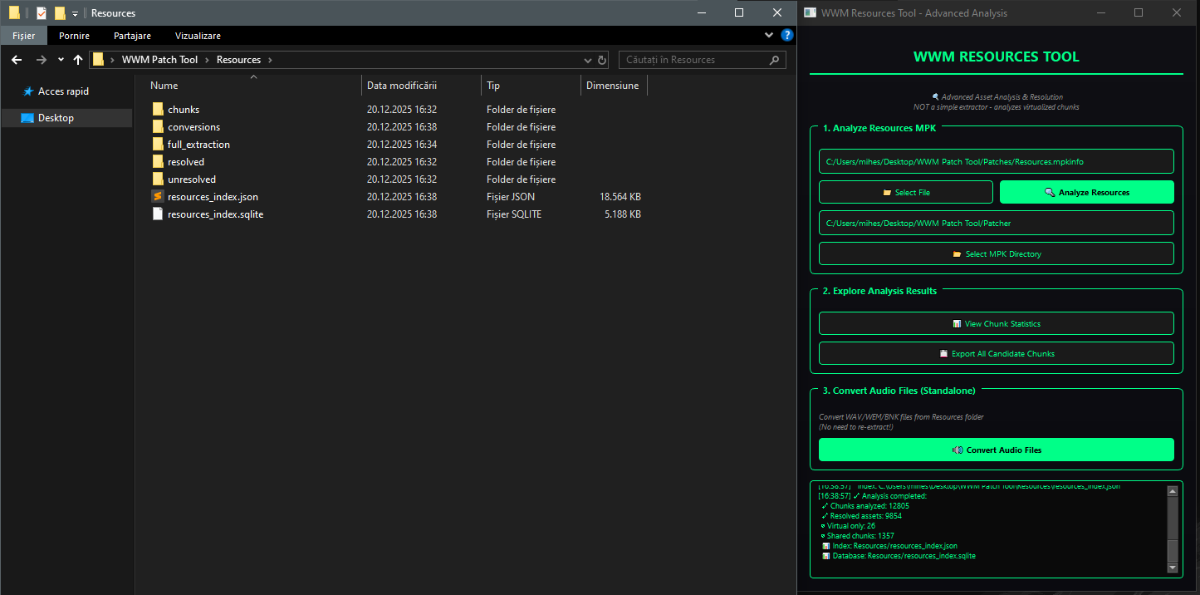
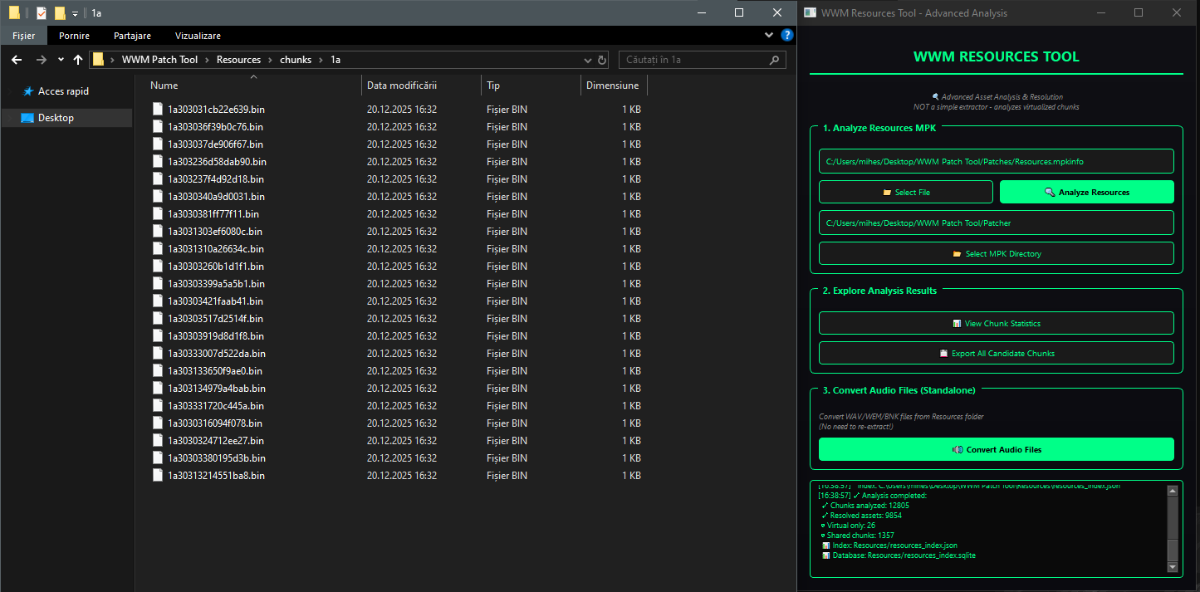
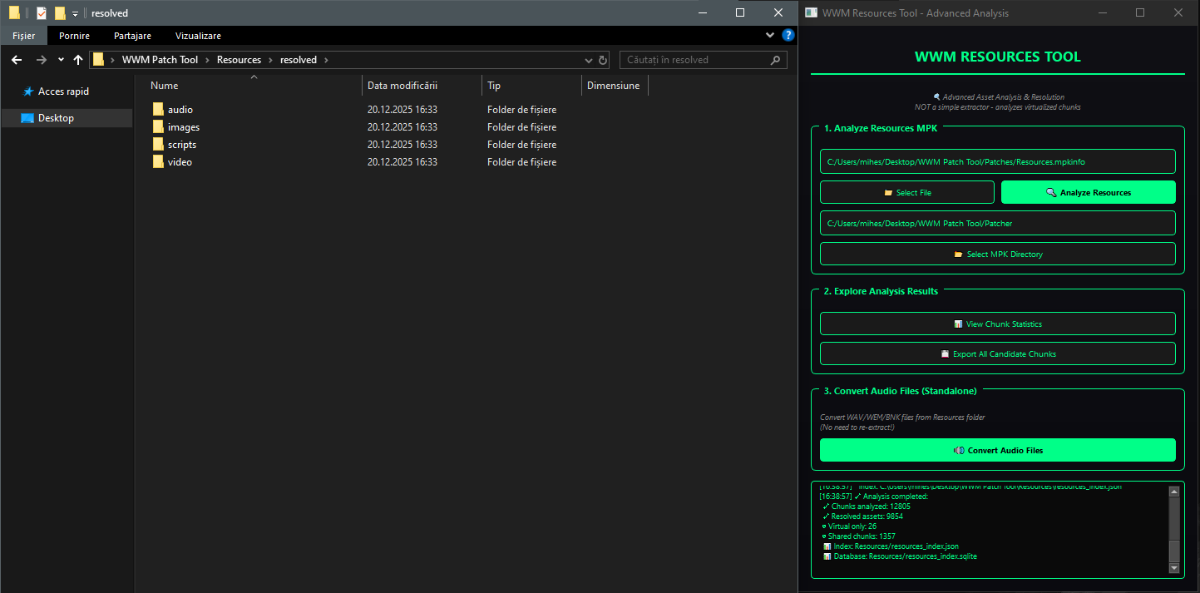
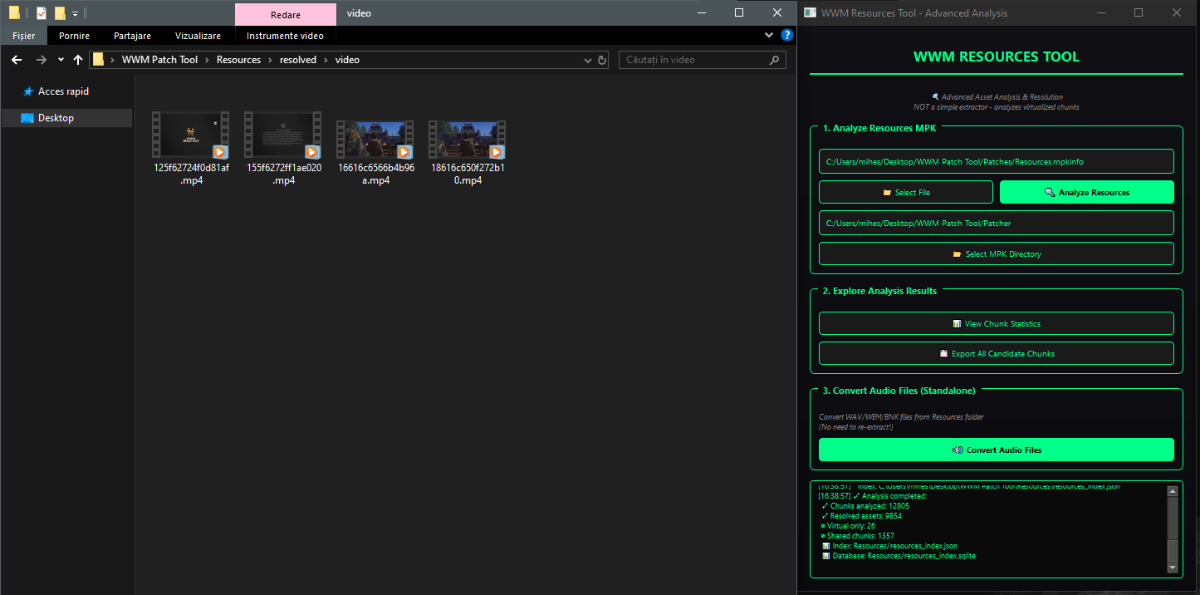
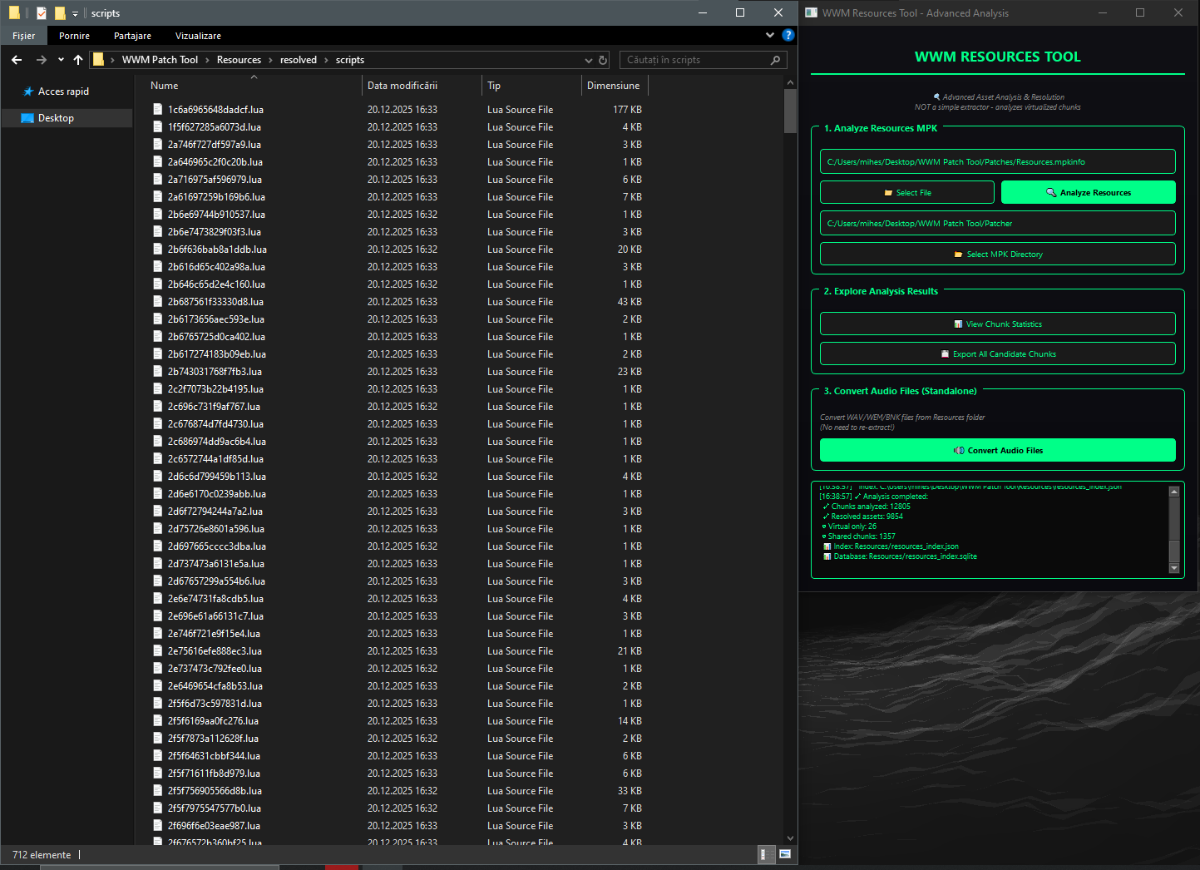
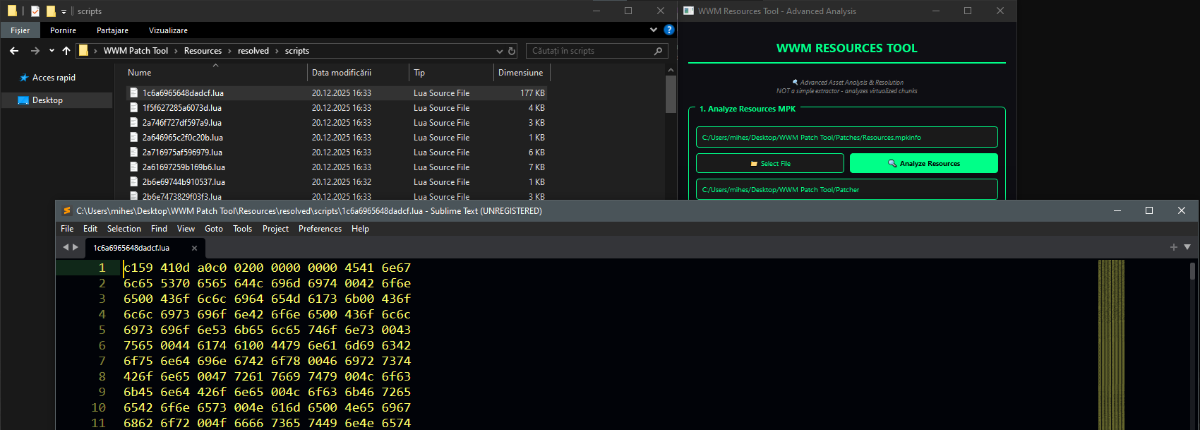
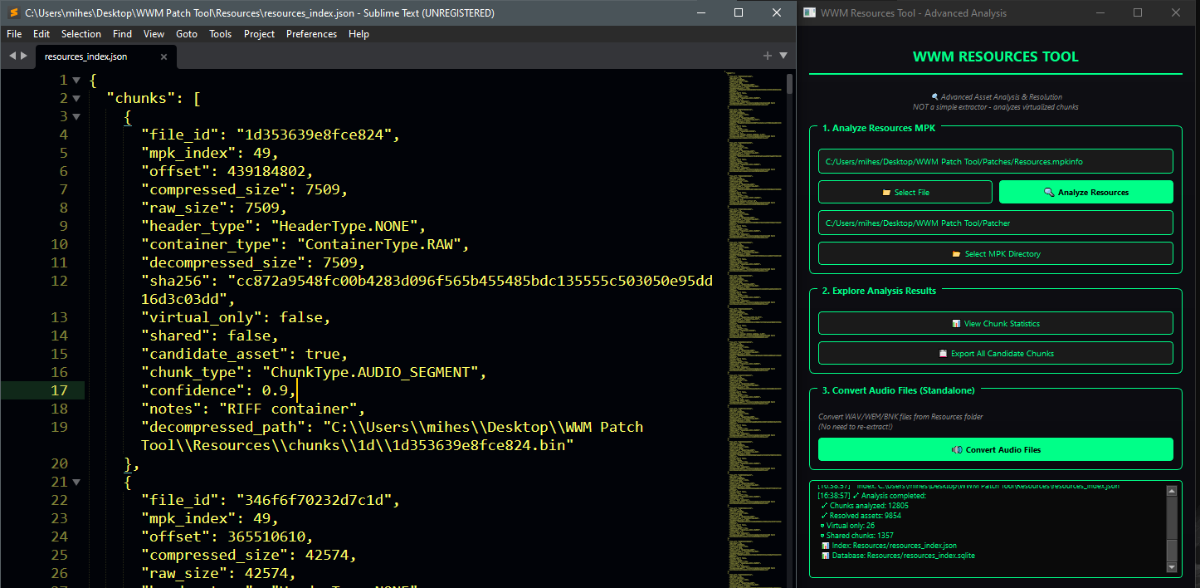
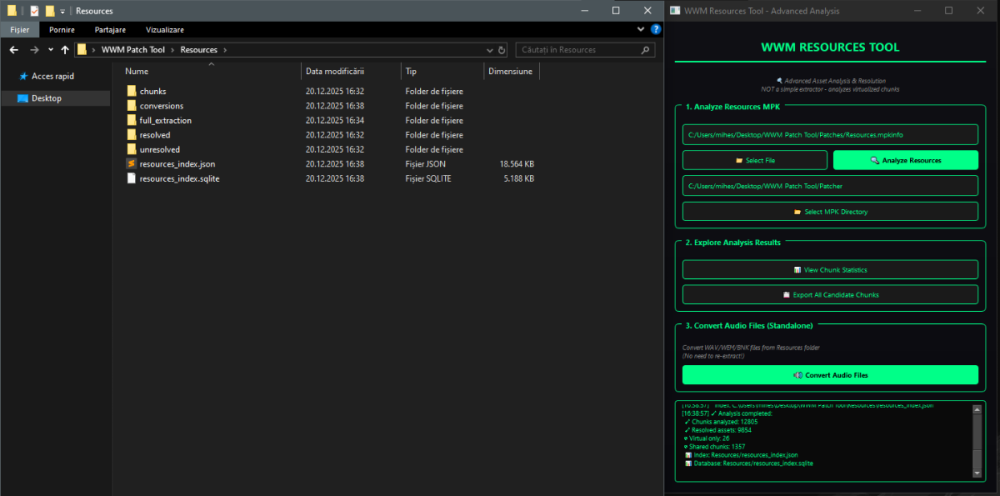
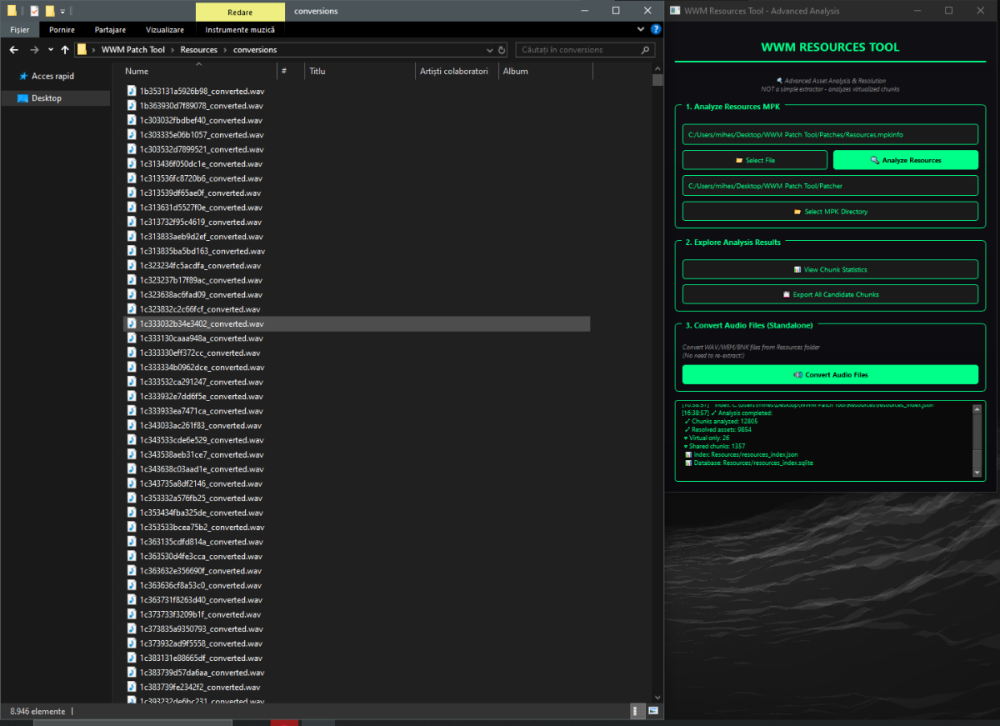
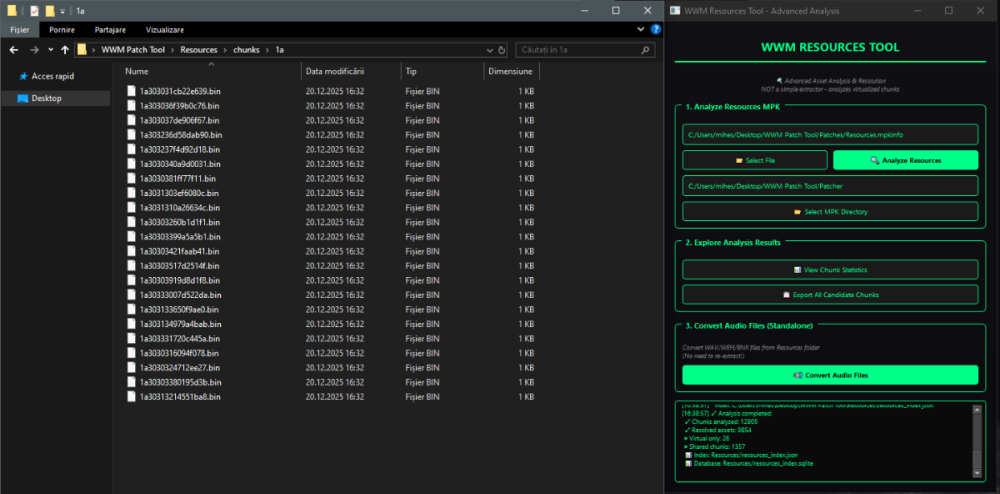
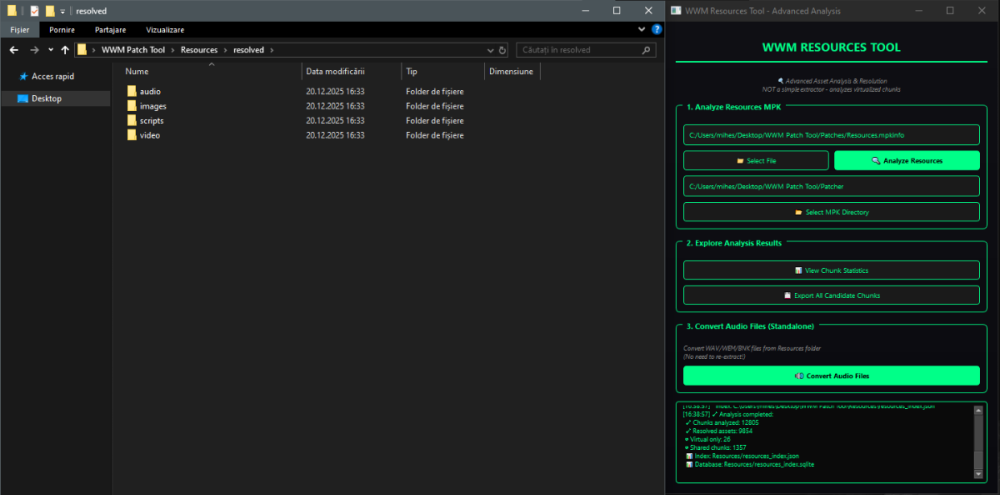
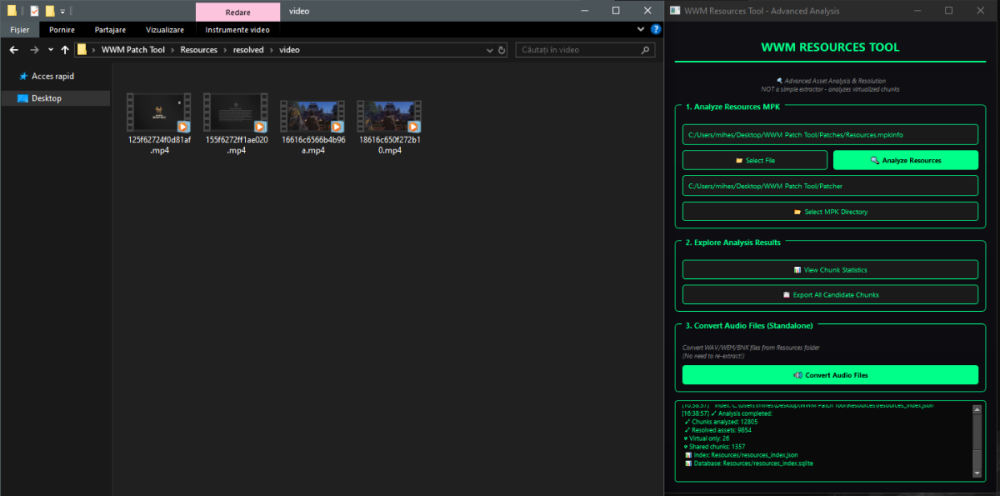
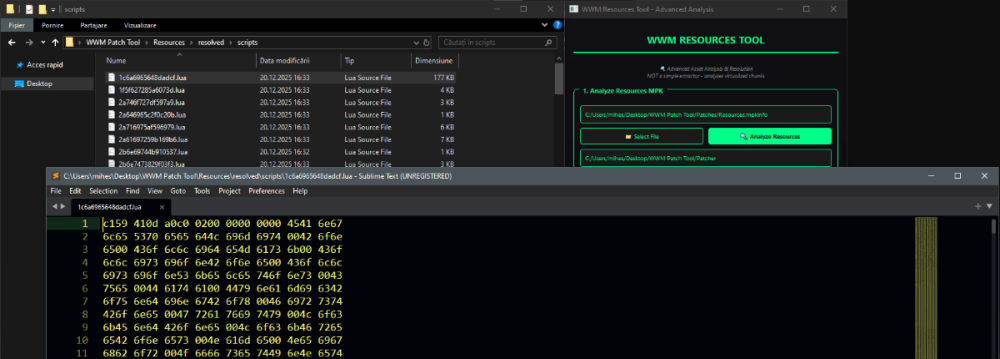
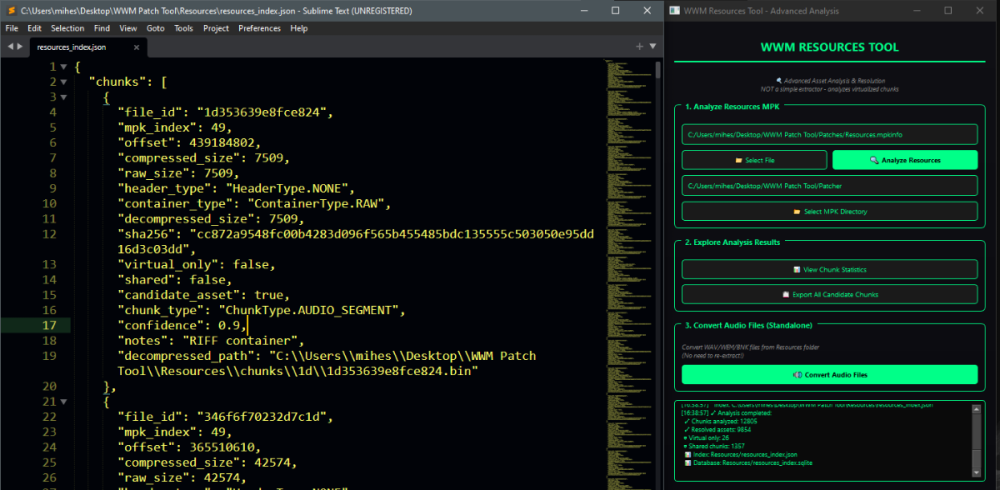
Author: Myro Scope: Educational & research-oriented reverse engineering Status: Ongoing research Introduction: This thread documents an ongoing technical research project focused on analyzing the MPK container system used by Where Winds Meet (WWM). The goal is to understand the structure, behavior, and data flow of the game’s asset containers from a reverse-engineering and archival perspective, strictly for educational and analytical purposes. No proprietary assets, binaries, or tools will be distributed as part of this work. 1. Patch*#.mpk vs Resource*#.mpk — Structural Similarity, Semantic Differences At a container level, Patch#.mpk* and Resource#.mpk* share the same base format: Indexed via mpkinfo / mpkdb Entries contain: FileID Size Offset MpkIndex Use the same compression stack: LZ4 / ZSTD / LZMA EZST (AES-encrypted) However, despite this structural similarity, their extraction semantics differ significantly. 2. Patch*#.mpk — Partial Transparency, Direct Asset Access Patch MPKs behave primarily as delta / override containers: Assets retain near-original offsets Internal file structures remain largely recognizable Minimal indirection compared to Resource MPKs As a result: ~99% of audio assets can be recovered successfully A subset of Lua scripts becomes readable after decompression Non-audio assets (including some images) are present and partially accessible Testing on Patch3100.mpk confirmed that Patch archives are not limited to sound assets. Conclusion: Patch MPKs prioritize update efficiency and fast access, with limited transformation of payload data. 3. Resource*#.mpk — Indirection and Shared Data Resource MPKs represent the primary asset pool and introduce several additional complexities: The Size field often represents a logical or expanded size, not the physically stored payload Naïve extraction pipelines tend to: materialize padding and alignment blocks duplicate shared data blobs inflate archive size artificially (e.g. ~2 GB → tens of GB) This behavior explains why Resource MPKs appear far more “opaque” when extracted without validation. Important observations: Fixed headers such as 02 02 02 01 … frequently represent logical structures (e.g. texture containers with multiple mip blocks) Headers of the form size (4 bytes) + size × 20 bytes often describe lookup tables, not standalone assets Many assets are shared, aliased, or referenced indirectly Conclusion: While Patch and Resource MPKs share the same container format, they do not share the same extraction semantics. Resource MPKs require strict validation, deduplication, and asset-type verification to avoid false positives. 4. Audio Extraction & Tooling Initial testing with Ravioli Game Tools proved sub-optimal for this pipeline: Inconsistent parsing of Patch audio assets Unreliable WAV output in multiple cases Switching to vgmstream yielded significantly better results: Correct parsing of recovered audio data Clean, fully functional WAV output Proper handling of codec structures Current result: Audio extraction and conversion are fully verified and stable. 5. Resource.mpk Extraction – Current Progress Testing on Resources49.mpk (~740.9 MB) produced the following results: Successfully extracted: Audio assets → converted to valid .wav files Over 8,500 audio files identified in a single Resource MPK Video files (.mp4) → fully playable Lua scripts (.lua) → extracted but still encrypted / obfuscated Unresolved: Files detected as images (.png, .jpg, .bmp) Headers contain the string “messiah” Strongly suggests custom packing, encryption, or misclassification Currently not valid image data despite file extensions 6. Current Status ✔️All Patch*#.mpk, Resource*#.mpk, and lt*.mpk archives can be unpacked ✔ Audio assets fully recovered and validated ✔ MP4 video assets fully playable ✔ Lua scripts extracted but not yet readable 7. Next Steps Ongoing research will focus on: Reversing additional transformation layers in Resource*#.mpk Identifying: secondary encryption stages compression chaining block or stream reordering Investigating the custom image container format Further analysis of Lua encryption / obfuscation Automating Patch vs Resource handling as two distinct pipelines Notes on Tooling & Distribution All tools used in this project are: developed entirely from scratch created specifically for WWM research used strictly for educational purposes At this stage: no tools, binaries, or scripts will be released no proprietary assets will be redistributed Closing This thread is intended solely as a technical research and documentation log, not as a release, redistribution, or exploitation guide. In accordance with applicable intellectual property laws and forum policies, no tools, binaries, scripts, or extracted assets will be posted or shared, either publicly or privately. All game data, assets, file formats, and related materials discussed here remain the exclusive proprietary property of NetEase and the developers of Where Winds Meet. Any references to assets or file structures are made strictly for educational, analytical, and research purposes, with no intent to enable misuse, circumvention, or redistribution of protected content. Should any concerns arise regarding compliance or scope, I am fully open to cooperating with forum moderation and adjusting the visibility or content of this thread accordingly. Thank you for your understanding and for supporting responsible technical research. — Myro Below are a few illustrative screenshots and log excerpts from the current stage of the research, provided solely to contextualize the findings outlined above.

 7 points
 -
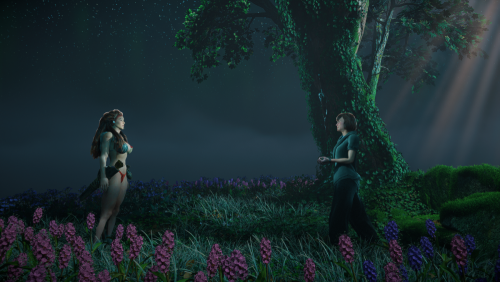 Work in progress, build 0.7 For instructions and support join reshax discord: https://reshax.com/topic/138-reshax-discord-server Currently, we must be able to replace any mesh in the game, including Aloy and other characters, robots, or environment parts. Also possible to replace most textures.7 points
 -
7 pointsAdding materials... thats probably last thing its missing before release7 points
-
7 points
-
7 pointsTool v1.2 posted. Work is not finished, i'm looking into getting custom characters now. Also maybe i can get real hairs later. Textures not supported yet, but they can be extracted with tools for other frostbite games.7 points
-
7 pointsI've run out of ideas. For now I can offer this script for 3ds Max. Can import geometry and UVs for main characters. Everything else can't. Basically, I just found the required offsets and choise its depending on the file name. The path to the file is written in line 50 I still have a long way to go before deciphering the format, so I decided to post this temporary script. List of supported files in the spoiler. AW2_tmp_236.zip7 points
-
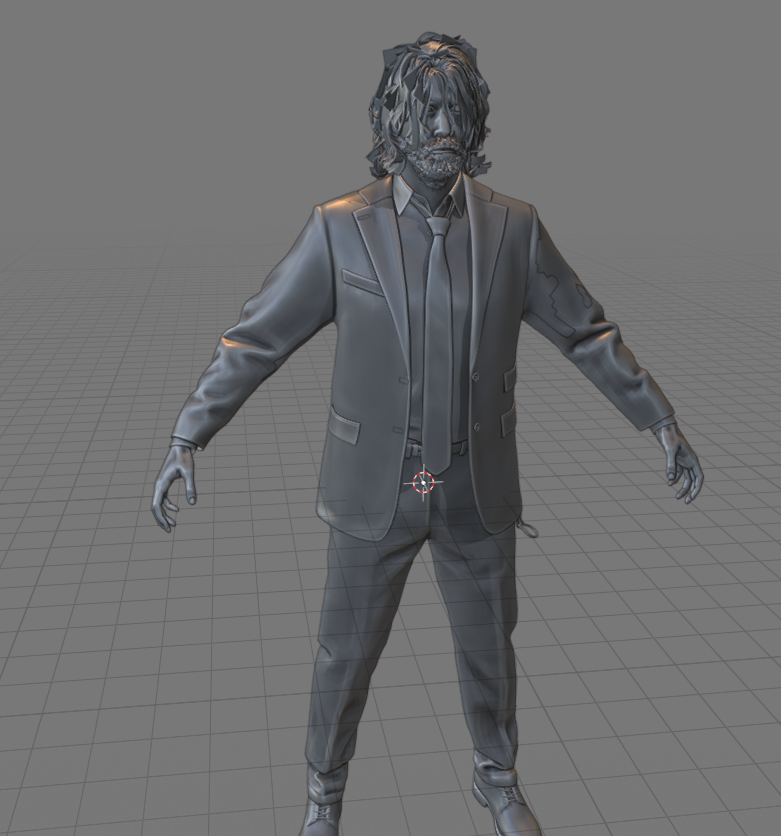
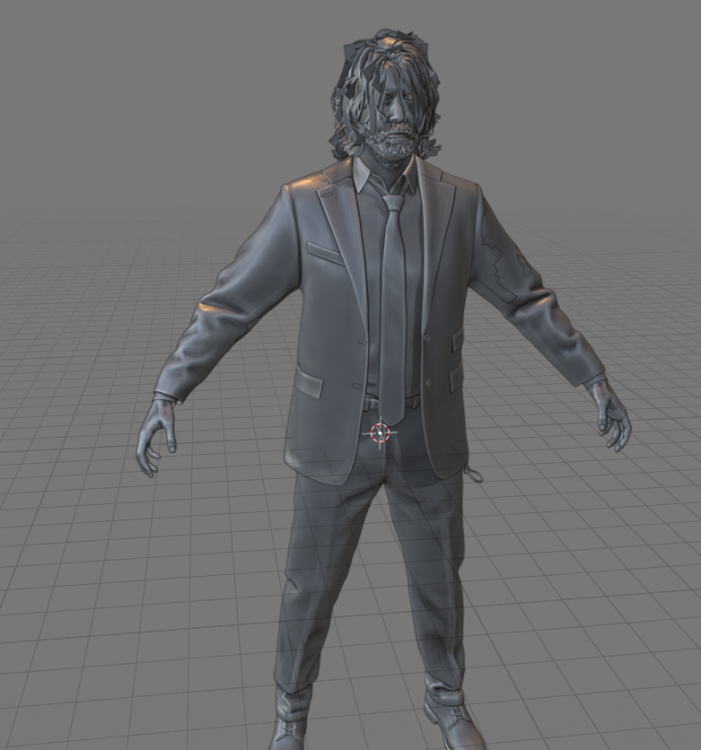
7 pointsThis is my initial manual testing of one of the Alan models - nowhere near the scripting stage yet though, although others are working on it too.
 7 points
 -
6 pointsWe are currently testing whether we can retrieve character IDs from the database and read all related data6 points
-
6 points
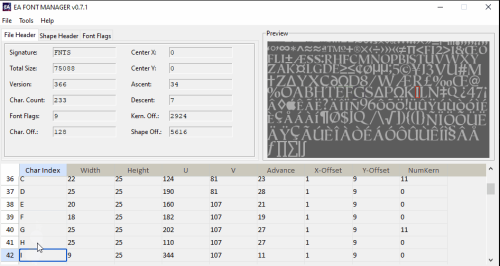 Program for handling FFN, PFN, XFN, MFN and SFN fonts from EA games List of functionalities: - Parsing EA Font files - Preview for font images - Decoding and viewing font flags - Viewing/Editing character table - Exporting font images as DDS, PNG or BMP - Importing font images from DDS, PNG or BMP6 points
 -
6 pointsI made an importer that import every tmd2 model correctly. it can read models with more than 255 bones, all uv layers, all vertex color layers, tangents, binormals, both sets of normals, etc... https://www.nexusmods.com/bleachrebirthofsouls/mods/636 points
-
6 pointsOkay, here's a little bit of an update. I've added support for all the vertex types, and the textures should all load correctly now. I've also included the extra UVs where available, although they're not presently used. The bones are still messed up in a lot of cases, so that still needs some work. The materials also need more work. I've disabled the vertex colours for now as that was messing up a lot of the meshes as well. bleach_rebirth_tmd2.zip6 points
-
A QuickBMS archive extraction script for NetEase NeoX Engine NXPK (.npk) archives. Originally authored by aluigi (pre-v0.4.0) and modified by me. Currently Supported Games Force Extraction (no guarantees) Identity V Onmyoji Changelog6 points
-
6 pointsTool released. Its an early version (as usual), but already makes very good results.6 points
-
6 pointsHorizon Forbidden West tool. There are versions for PS4 and PS5. Extracts all (or almost all) characters/robots with skeletons, animations and textures, also static meshes. h2_ps4.7ziph2_ps5.7zip6 points
-
6 points
 fcp_unpack.exe - unpack .fat/.dat pairs. Drop .fat onto the tool. It will unpack all files. It will search all .XML files located in the same dir for names. Names for all files in big primal_main package is here - https://mega.nz/#!IZYlBSKJ!gjrLniO4goeCFlSoQQk_PqhLEGcxW0dd7nH2QqOVcfs You can go to current dir, and run the tool from somewhere else and specify FAT file somewhere else. So you can place everything in 3 different dirs if you like: 1. dir with the tool 2. dir with fat/dat pair 3. current dir where unpacked files will go (also must have xml files for names) fcp_pack.exe - repack .fat/.dat pairs. Just run it in the dir where you have files to pack. oasis_fcp - modified "dunia tools" strings converter for Far Cry Primal 1. Convert BIN to XML as usual 2. Find line with 0xAEE923DE code and delete it. (This new format somehow has 1 section without lines in it. This is causing the old tool to fail. Maybe it's needed or something, then I'll have to find a way to handle it.) 3. Make changes you need 4. Convert file back to BIN 5. Add "table_fcp" table to the end of the file (This can be done in any hex editor or commander tool, or with command line such as "copy /b oasis.bin + table_fcp oasiswithtable.bin") 6. Pack oasis file into FAT/DAT with my packer tool. Important note. Patch.fat/dat is loaded before patch_sound.fat/dat so you have to find some other package to replace text, or remove old file from patch. I did this by finding the file hash in patch.fat and changing it. The hash is (F3 F8 E3 5D 29 FD BD F2) for english file. Changing any byte here will "mask" the file so game won't find it. Also if oasis file will be changed, you need to get the new table from the end of original file. oasis_fc4 - strings converter for Far Cry 4 Same for FC46 points
 -
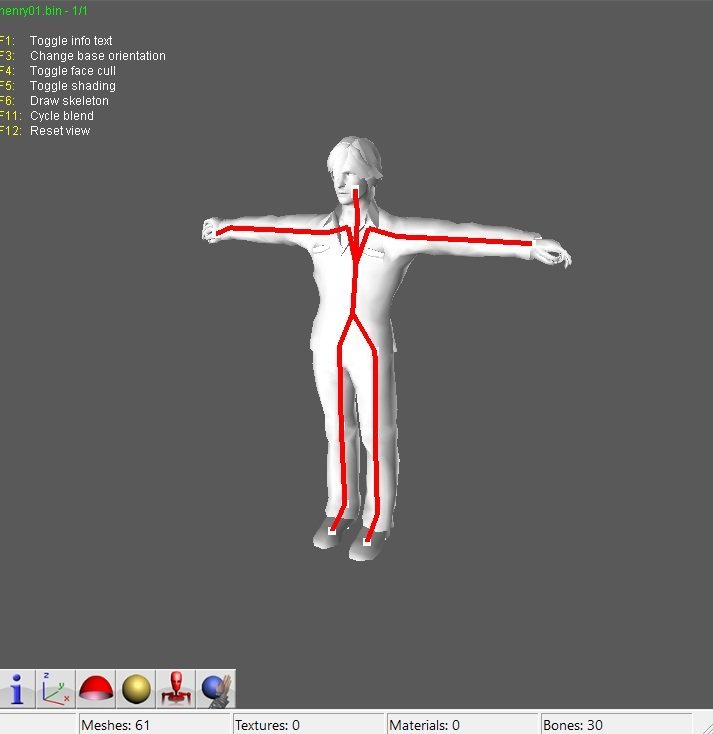
6 pointsHere is a modification of Durik256's fmt_bin.py with support for mdl bone binding in noesis. Some tri-strip sill show up inside out, Just toggle the culling setting to make all face visible. fmt_bin_bones.py
 6 points
 -
6 pointsUpdate 2.00 - Alan Wake 2 *.binFBX Blender Addon added rigged skeleton support, including non-human meshes (let me know if you get anything unexpected, still rough around the edges!) added support for some other meshes i can't remember more debug logs for anyone interested in the format died and came back to life Roadmap material generation proper reverse engineering of mesh file (every mesh file being supported without manually finding offsets) mesh/submesh replacing (might be coming the soonest) io_scene_binfbx.zip6 points
-
6 pointsA QuickBMS script to extract all of the data from Alan Wake 2's RMDTOC/RMDBLOB files.6 points
-
5 pointsHere is experimental version of dump tool for full version of Battlefield 6. (attached in the end of this post) For almost a whole year now since beta versions it was possible to use my set of tools to get ANY files from it, be that beta or full version. The only problem was "update" folder that was not supported as it is. To get it dumped, you had to move files from update folder to data folder. Each subfolder inside "update" has "data" inside, and you have to move contents to main "data" folder. It does not overlap and work as intended. Now i made this new version which must scan update folder and add data from it. Important change of .INI file is that now game path must NOT include "data" in the end: C:\games\bf6 D:\dump all After dumping, you can use same set of tools from here: bf6_update.7z5 points
-
5 points
-
5 pointsThe tool is now available. Download: https://github.com/Wildenhaus/IndexV2/releases How to use:5 points

.thumb.png.52ce406a312cb8b82140914cf7ad1783.png)